
SSD vs USB Flash Drive for Tesla Dashcam
Key Takeaways
The right storage device depends less on headline speed than on how you use the car and how reliably the drive stays connected. Check your vehicle’s requirements and leave room for the recordings you want to keep.
An SSD and a USB flash drive can both be practical storage choices; compatibility and dependable operation matter most.
Repeated recording and overwriting make drive endurance worth considering, especially with frequent parked recording.
Faster transfer speeds can make copying files more convenient, but they do not necessarily improve the recorded footage.
Capacity needs vary with driving, parked recording, and how long you keep clips before backing them up.
Confirm the data-capable port, format, and setup steps for your specific vehicle before buying or formatting a drive.
How Tesla dashcam storage works
Dashcam storage is a small but practical part of keeping useful recordings accessible. The drive needs to work with the vehicle, remain connected, and have enough free space for the clips you care about. A little setup checking up front can spare a frustrating first test drive.
What Dashcam and Sentry Mode write to the drive
Dashcam and Sentry Mode recordings can include video captured while driving and when the vehicle is parked with Sentry Mode active. How much material accumulates depends on use and the system’s recording behavior. A drive is not a permanent archive by itself: files may be overwritten or need to be copied elsewhere if you want to keep them.
For that reason, think about what you expect to review later. A typical commute and occasional parking events create a different storage pattern from frequent driving and regular use of parked recording. Keep important clips backed up separately rather than relying on the in-car drive as the only copy.
Why continuous recording creates repeated write cycles
When a system repeatedly records new material and reuses available space, the storage device undergoes repeated write cycles. That is normal for recording use, but it makes sustained-use suitability a more relevant question than a single advertised peak speed. A drive used only occasionally has a different workload from one left in place through daily driving and frequent Sentry Mode use.
The useful comparison is therefore not just “Which device is faster?” but “Which device is a sensible match for repeated recording, the vehicle’s connection, and my budget?” Consider those factors together; no storage type should be treated as immune to wear or failure.
How TeslaCam folders and saved clips are organized
The recording setup uses a TeslaCam folder to organize files. Follow the instructions applicable to your vehicle and drive, then check that a short test recording appears where expected. Folder names and the way clips are presented can vary with the setup, so verify the actual files on your drive before depending on them.
If you need a walkthrough, this SSD setup guide covers checking the port, preparing the drive, and verifying a test recording. A quick test is useful because it checks the whole path—from connection to saved file—rather than assuming that a drive is ready just because it appears in a computer.
SSD vs. USB flash drive: Key differences
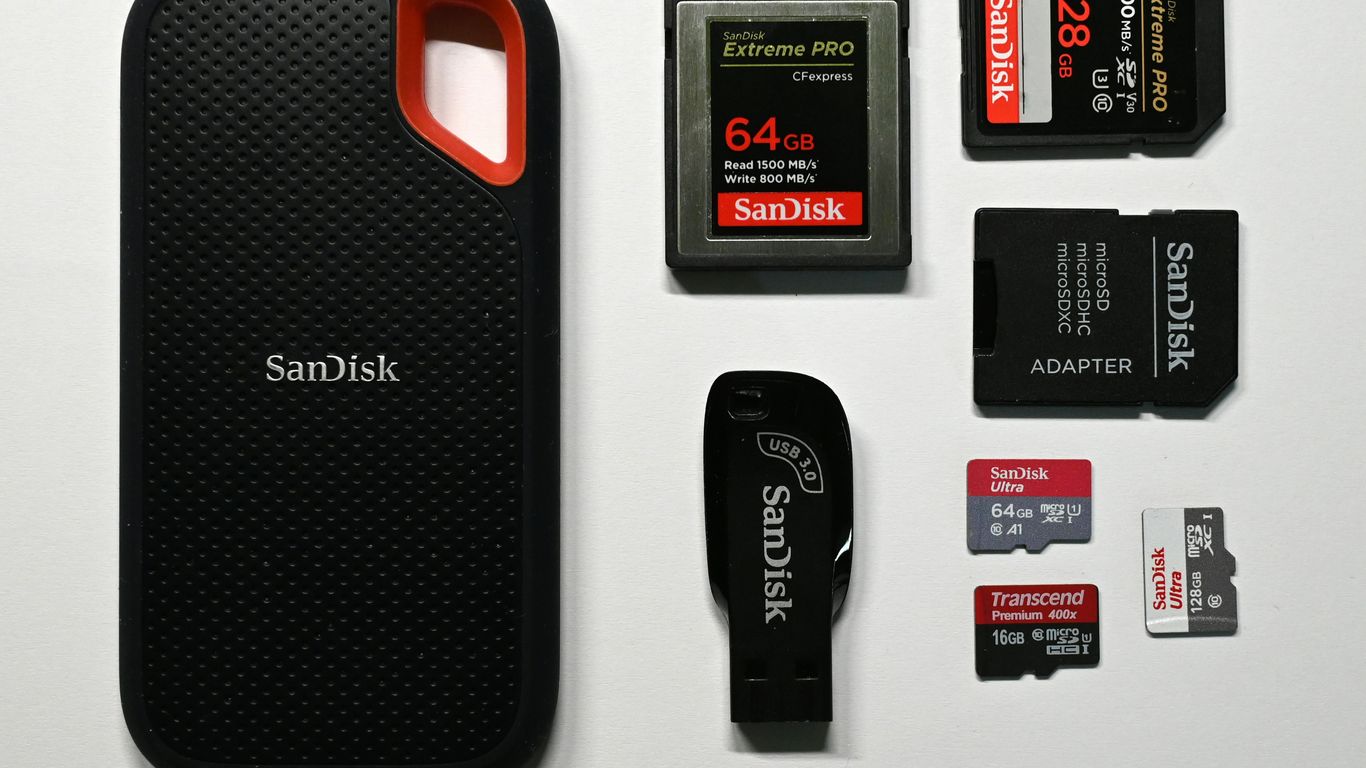
Both options can serve as removable storage, but their physical design, capacity, and sustained-use characteristics differ. The best choice is rarely determined by one speed figure alone. Consider how often you record, how much footage you want to retain, and whether the device and cable can sit securely in the vehicle.
Read and write speeds in everyday use
A drive’s read and write ratings can matter when copying recordings to a computer, but everyday use also depends on the port, cable, and device. A compact flash drive can be convenient to connect, while an SSD may offer higher transfer rates for moving larger collections of files. Manufacturer ratings are not a guarantee of a particular result in a vehicle setup.
The broad trade-offs are easier to compare side by side than to infer from a speed label alone:
Consideration | USB flash drive | SSD |
|---|---|---|
Physical form | Often a small, single-piece device | Usually a separate drive enclosure |
File transfers | Varies by model and connection | Can be quick, depending on drive and connection |
Capacity choices | Varies by model | Often available in larger capacities |
Connection details | Check connector and port fit | Check connector, cable, and port fit |
For a specific example, the Samsung T7 1TB SSD lists read speeds up to 1,050 MB/s, but that rating alone does not establish compatibility with a particular vehicle. Treat speed as one buying detail, not the deciding factor.
Endurance under frequent recording and overwriting
Repeated recording gives endurance a practical role in the choice. Device quality and product specifications vary, so compare the maker’s stated use and warranty details rather than assuming every flash drive or SSD will last the same amount of time. A larger drive can also provide more room before older material needs to be replaced, but it is not a substitute for backups.
If parked recording is a routine part of your use, favor a device intended for frequent writes and inspect it periodically. The USB drive comparison is another place to review storage, durability, speed, compatibility, and price considerations without treating a single specification as a guarantee.
Size, portability, and cable considerations
A USB flash drive can be easier to tuck away because it may plug directly into a port. An SSD commonly takes more room and may need a cable, which adds another connection that could be disturbed. In either case, avoid a setup that puts strain on the port or leaves a device loose where it can be knocked.
Think about access as well as fit. If you plan to remove the drive often to transfer clips, a compact and easy-to-reach arrangement may matter more than a modest difference in transfer speed. Check connector orientation and available space before settling on a model.
Why faster speeds may not improve dashcam footage
The drive stores the video; its advertised maximum transfer speed does not make the vehicle’s camera capture a clearer image. Once a drive can handle the recording workload reliably, additional speed may mainly affect how quickly files transfer to another device. Camera quality and recording settings are separate considerations.
That distinction helps keep the purchase grounded. Choose for stable operation, suitable capacity, and a sensible physical fit first; treat high transfer ratings as a convenience when reviewing or backing up large files.
Reliability in a parked Tesla
A parked vehicle puts storage in a different situation from a drive kept in a climate-controlled room. The device may remain connected for extended periods, and its physical position can expose it to warmth, movement, and accidental contact. A practical setup accounts for the location and checks that the drive continues to save recordings.
Heat, vibration, and other in-car conditions
Temperature inside a vehicle can vary considerably with weather and parking conditions. Vibration and bumps are also part of normal vehicle use, while a loose cable or protruding drive can be jostled. These are reasons to read the device’s specifications and secure the connection sensibly—not to assume that any particular drive will fail in a car.
Avoid placing the device where it is likely to be bumped or where a cable is pulled tight. If the manufacturer lists operating limits, compare them with the intended use and remember that real conditions can vary from day to day.
How drive quality affects recording consistency
Recording consistency depends on the whole setup: the drive, its connection, available space, and compatible configuration. A low-cost device that disconnects or fails to save a test clip is not a bargain for this purpose. At the same time, price alone does not prove that a drive will behave well in a specific vehicle.
Start with a reputable product whose specifications fit the intended use, then verify actual operation. An occasional review of saved files is a simple way to notice a problem before you need a particular recording.
Signs a drive may be wearing out or disconnecting
A missing drive, recording warning, or gap in expected files can point to a connection, setup, or device issue. Corrupted or unreadable clips may have several causes, so they do not by themselves prove that the drive has worn out. Check the port, cable, format, and available space before drawing a conclusion.
If the problem persists, copy any readable important files and test the drive outside the vehicle where possible. These video playback troubleshooting steps may help distinguish a compatibility or file issue from a physical connection problem.
Capacity, cost, and storage needs
There is no single capacity that suits every driver. The amount of footage you want to keep, how often parked recording is used, and how often you transfer files all affect the practical choice. It can help to decide first whether the drive is only for current recordings or whether you want a larger buffer before clearing or backing up clips.
Estimating space for Dashcam and Sentry Mode clips
Actual space use varies with recording settings, activity, and the vehicle’s handling of saved material. Instead of relying on a universal estimate, observe how quickly your own drive fills during a representative period. That gives a more useful basis for choosing capacity than a guess based on someone else’s routine.
It also helps to decide what “enough” means. Some owners may transfer important clips regularly and need modest working space; others may prefer a larger buffer between backups. Keep in mind that storage allocated to other files is not available for recordings.
Comparing upfront cost with expected lifespan
A flash drive may have a lower purchase price, while an SSD can offer a different combination of capacity, form factor, and transfer convenience. Prices, warranties, and specifications change, so compare current product details rather than assuming one format always costs less or lasts longer. A higher initial price is only worthwhile if the drive’s attributes match your use.
The relevant comparison is the expected value over time: capacity you will use, reliable connection, and reasonable replacement terms. Treat any lifespan estimate as an expectation, not a promise, and keep a backup routine for clips that matter.
Choosing capacity for daily driving or frequent Sentry Mode use
A driver who saves clips often may be comfortable with less capacity than someone who wants to leave recordings in place for longer. Frequent parked recording can also change how quickly free space is used. Match the capacity to your habits, then check the remaining space from time to time rather than waiting for a recording issue.
If you are comparing sizes for a particular vehicle, this Model Y Juniper storage guide discusses capacity and fit considerations across several drive types. Its guidance is useful as a starting point, but confirm that the listed setup fits your own vehicle and intended use.
Setup and compatibility
A suitable drive still needs to connect to a port that supports data and be prepared in a way the vehicle can use. Port layouts and requirements can differ by model, year, and configuration, so do not rely on a general rule based only on the model name. Check your vehicle’s current instructions before formatting or purchasing an adapter.
Checking your Tesla’s USB ports and connection requirements
First identify which port supports data transfer in your vehicle. Some ports may be intended for charging, and the location of a data-capable port can vary across vehicles and updates. Check the owner information and what the vehicle’s interface recognizes before choosing a connector or cable.
If the drive’s plug does not match the port, verify that any adapter supports the connection you need. A compact adapter may help with physical fit, but it cannot turn a charging-only port into a data port. Compatibility is specific to the vehicle and setup.
Formatting the drive and creating the TeslaCam folder
Formatting can erase existing files, so copy anything you want to keep before starting. Follow the vehicle’s current instructions for preparing the drive and creating the required TeslaCam folder; do not assume that an old setup guide applies unchanged to every model or software version. After preparation, reconnect the drive and confirm that the vehicle recognizes it.
For a short setup checklist, review this USB formatting guide. The central point is simple: use the file system and folder arrangement required by your vehicle, and test the result before relying on it.
Verifying that Dashcam recognizes the drive
A successful connection is not the same as a successful recording. Confirm that the vehicle indicates the drive is available, then make a short test and check that a clip is saved and can be opened. This checks both recognition and file creation, which are separate steps in practice.
If the test fails, revisit the data port, format, free space, and cable or adapter. Change one thing at a time where possible so the cause is easier to identify. Back up files before repeating any step that could erase or overwrite them.
Keeping space available for clips and other files
If you use one drive for recordings and other files, those files reduce the room available for clips. Keep the setup uncomplicated and leave a sensible amount of free space rather than filling the device to its limit. Periodically transfer clips you want to keep and remove files only when you have confirmed they are backed up.
A small routine can prevent avoidable surprises. Before a longer trip, check that the drive is connected and has space; afterward, review and back up anything important. If you do store music alongside recordings, follow a shared-drive setup guide and verify that the arrangement works in your vehicle.
Which option to choose for your Tesla
The choice comes down to use, fit, and comfort with the setup. A flash drive can be a straightforward option for a simple arrangement, while an SSD may suit someone who wants more capacity or convenient file transfers. Neither is automatically the right answer for every vehicle or recording pattern.
When a USB flash drive is a practical fit
A USB flash drive can make sense when a small, direct connection is convenient and the capacity matches your recording habits. It may be easier to install without a separate cable, depending on the port and the device’s shape. Check that it does not obstruct nearby ports or stick out where it can be bumped.
This option is especially easy to evaluate with a brief test: prepare it correctly, confirm that recording works, and see whether the available space suits your routine. If it does, there may be little reason to buy a larger device simply for a higher speed rating.
When an SSD makes more sense
An SSD may be a better fit if you want additional capacity or often move larger collections of clips to another device. It can be a larger physical setup, so plan for the cable and a secure place for the drive. Check that the exact model, port, and formatting work together before committing to it.
Accessories for Tesla lists a Tesla SSD among the products it features, but a product listing is not a substitute for checking your own vehicle’s requirements. For another practical overview of choosing accessories by model and use, explore Tesla accessory ideas.
What to check before buying a drive for your model and year
Before ordering, confirm the data-capable port, connector type, supported setup, and available physical space in your vehicle. Check the drive’s capacity, dimensions, cable needs, warranty, and current seller details as well. A product described as suitable for one model year is not necessarily suitable for every vehicle with a similar name.
The site also organizes broader shopping guidance by vehicle and category, with product details and compatibility notes to review. You can browse Tesla accessories as a starting point, then verify current specifications and fit for your exact model year before purchase.
How to maintain and replace your dashcam storage device
Check periodically that the drive is present, that recent clips are saving, and that important files have a separate backup. Inspect the connector and cable for looseness or visible damage. If recordings stop or files become unreadable, troubleshoot the setup before assuming a replacement is necessary.
When replacement is appropriate, preserve any files you need before formatting or retiring the old device. Recheck the new drive from the beginning—connection, preparation, and test recording—because a familiar-looking replacement may still behave differently in your specific setup.
Shop Tesla Accessories
If you are updating more than storage, browse Accessories for Tesla’s model-organized aftermarket guides and product selections, then confirm compatibility and current purchase details with the seller.
Conclusion
For the Tesla SSD vs USB flash drive dashcam decision, start with compatibility, a secure connection, and enough capacity for the way you use the vehicle. An SSD can offer a larger storage option, while a flash drive may keep a simple setup compact; the better choice is the one that records reliably in your car and fits your habits. Test it, keep important clips backed up, and revisit the setup if your recording needs change.
Frequently Asked Questions
Is an SSD better than a USB flash drive for dashcam recording?
Not in every setup. Compare compatibility, capacity, connection stability, physical fit, and intended use rather than choosing by storage type alone.
Does a faster drive improve recorded video quality?
A drive’s transfer speed does not make the camera capture clearer footage. Faster speeds may instead make copying files more convenient, depending on the drive and connection.
How much storage do dashcam recordings need?
It depends on how often you drive, how much parked recording you use, and how long you keep clips. Monitor your own space use and choose capacity based on that pattern.
Can recordings and other files share one drive?
That depends on the vehicle’s supported setup and how the drive is prepared. Other files use space that would otherwise be available for recordings, so verify the arrangement and test it.
How can I tell whether a drive is recording properly?
Check that the vehicle recognizes it, make a short test recording, and confirm that the file is saved and playable. Repeat the check periodically.
Should I format a new drive before using it?
Follow the current instructions for your vehicle and back up any files before formatting. The correct preparation and file system can depend on the setup.
What should I do if a recording is missing or unreadable?
Check the connection, available space, format, and file playback before concluding that the drive has failed. Copy any readable important files and avoid unnecessary writes if you are trying to preserve lost footage.

Comments