
Hidden Features in the Tesla Model 3 Highland
Key Takeaways
The Model 3 Highland hides many useful controls in plain sight, especially inside the touchscreen and mobile app. Availability can change with software, region, subscription, and vehicle configuration.
Learn the quickest paths to touchscreen, app, and steering-wheel controls.
Use shortcuts for navigation, climate, charging, trunk height, and notifications.
Treat Autopilot and other driving controls as convenience tools, not substitutes for attention.
Check software version, connectivity, trim, and regional availability before relying on a feature.
Confirm fit and model year before buying an aftermarket accessory for the car.
How to access Tesla hidden features on the Model 3 Highland
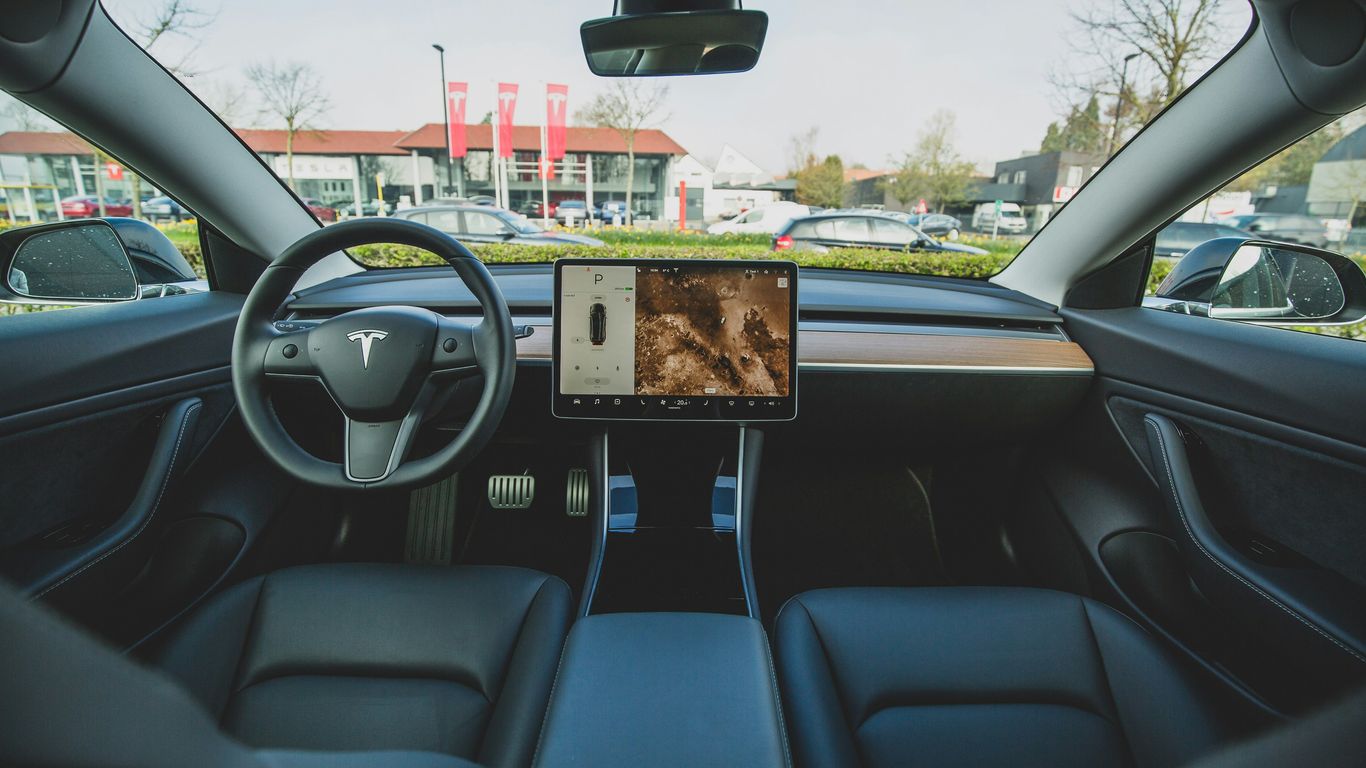
The Model 3 Highland puts most vehicle functions on the center display, but that does not mean every control is obvious. Some options appear only after opening a secondary menu, pressing and holding an icon, or using a steering-wheel shortcut. The fastest way to learn Tesla hidden features Model 3 Highland owners discuss is to try one feature at a time while parked.
Finding controls on the center touchscreen
Start with the controls that are already visible: climate, media, navigation, charging, and vehicle settings. Tapping an icon may open a larger panel, while pressing and holding certain controls can reveal customization options. The exact layout can change after an update, so use the search function or browse the main control categories rather than assuming an older tutorial still matches your screen.
A simple reference helps when you are learning the interface:
Task | Typical place to begin | What to check |
|---|---|---|
Climate | Climate control panel | Temperature, fan, and parked climate options |
Lights | Quick controls or vehicle settings | Headlights, interior lights, and related options |
Charging | Charging screen | Charge limit, schedule, and port controls |
Trunk | Vehicle controls | Opening height and related settings |
The table is a starting map, not a promise that every vehicle uses identical labels. If a control is missing, check the software version and configuration before assuming the feature has been removed.
Using voice commands, steering-wheel controls, and gestures
Voice commands can reduce the amount of tapping needed for common tasks, while the steering-wheel scroll wheels provide quick access to several adjustments. The wheels can also be customized on supported software versions. Touchscreen gestures, such as swiping between panels, are useful when the car is stationary; during a drive, keep interaction brief and focused.
The hidden Tesla features guide is useful as a companion when you want to compare common steering-wheel, app, and display shortcuts. Use it as a reference, then confirm the result on your own vehicle before treating a shortcut as standard equipment.
Managing features through the Tesla app and mobile widgets
The mobile app can expose controls that are easy to overlook when you are sitting in the car. Depending on the vehicle and account, owners may be able to manage climate, locks, windows, charging, and other quick commands remotely. A phone widget can make those commands faster to reach, though it should be set up before driving and used carefully around other people.
Remote controls depend on the car being connected and the phone being signed in to the correct account. If a command does not appear, check permissions, connectivity, and whether the vehicle supports that function rather than repeatedly sending the same request.
Checking software version, connectivity, and regional availability
Before following a video or forum tip, open the vehicle information area and note the installed software version. Updates can move controls, add functions, or change which subscriptions are required. Connectivity also matters for app commands, remote camera access, streaming, and route information.
Regional rules and vehicle configuration can affect availability, particularly for driving assistance and connected services. A practical Tesla delivery checklist can also help owners confirm cameras, screens, connectivity, navigation, and other controls when a vehicle is new.
Hidden convenience features for everyday driving
The most useful hidden controls are often small ones that remove a few taps from routine tasks. Sending a destination from a phone, changing the trunk opening height, or reducing notification volume can make daily driving feel calmer without changing the way the car operates. Try these features while parked so the motions become familiar before you need them on a busy day.
Send an address from your phone to the Tesla navigation system
A destination can be shared from a phone to the vehicle’s navigation system instead of being typed on the center display. Use the phone’s share function, select the vehicle or navigation destination option when available, and confirm the address in the car before starting the route. This is especially handy for an address copied from a message or calendar entry.
The handoff depends on phone permissions, account access, and connectivity. Always check the selected destination because a business name or street address can resolve to more than one result.
Navigate home quickly from the touchscreen
The navigation interface includes a quick route to a saved home location when that location has been configured. Rather than searching for the address every time, open navigation and choose the home shortcut. If the shortcut is absent or incorrect, review the saved location and update it while parked.
This is a modest shortcut, but it is one of the easier habits to build: set the destination before moving, then let the route guidance do the repetitive work.
Unlock the charge port and doors with shortcuts
The charge port can be opened from the touchscreen and through supported app controls, and the vehicle offers shortcuts for unlocking doors. A quick press near the charge-port area or the relevant on-screen control may be all that is needed, depending on the current state of the car. Keep the mechanical release in mind for an emergency, but do not pull it casually because manual releases are intended for situations in which normal operation is unavailable.
The same principle applies to doors: use the normal control first, and verify that the vehicle is secure after unlocking. Convenience should not replace checking who or what is around the car.
Extend the sun visor and adjust the trunk opening height
The sun visor has an extension that can slide out to cover more of the side window area. It is easy to miss because it looks like part of the visor rather than a separate feature. Move it gently and return it to its original position when visibility or access requires it.
The trunk opening height can also be adjusted and saved by positioning the trunk at the desired height and using the relevant control to set it. This can help in a garage with a low ceiling, but test the setting carefully and leave enough clearance for the lid.
Use Joe Mode to reduce notification volume
Joe Mode reduces the volume of selected vehicle notifications, which can be useful when passengers are sleeping or when repeated alerts become distracting. Find it in the sound or notification settings, then test the result before a long trip. It changes notification volume, not the need to respond appropriately to a safety-related alert.
A good cabin setup usually includes a few other small decisions:
Set the notification level before passengers settle in.
Confirm navigation instructions remain easy for the driver to hear.
Check the setting again after a software update.
Avoid adjusting sound controls while the vehicle is moving.
These steps keep the feature practical instead of turning a quieter cabin into a reason to miss useful information.
Driving and Autopilot shortcuts worth knowing
Driving shortcuts deserve more caution than comfort settings because a fast gesture can affect speed or assistance behavior. The controls below are best learned while parked and practiced only when the road, traffic, and weather make the action appropriate. Driver assistance remains a supervised function, regardless of how convenient the shortcut feels.
Lower the Autopilot speed without opening multiple menus
When supported, the right steering-wheel scroll wheel can lower the selected Autopilot speed quickly. The on-screen speed control may provide another route, but the wheel avoids opening several menus. Make the adjustment only when you can keep full attention on traffic and confirm the new speed on the display.
The exact behavior can vary by software and driving-assistance state. If the wheel does not respond as expected, use the visible control when safe rather than experimenting in motion.
Dismiss recurring Autopilot prompts more efficiently
Some recurring prompts can be dismissed with a steering-wheel scroll-wheel action instead of navigating through a menu. That shortcut may reduce distraction, but it does not remove the underlying requirement to pay attention or keep your hands and eyes appropriately engaged.
If prompts appear repeatedly, consider whether the system is asking for an action you are not completing. Dismissing an alert is not the same as resolving the condition that caused it.
Use Slip Start when driving on loose or slippery surfaces
Slip Start is a driving setting intended for situations involving loose or slippery surfaces. It should be used only when conditions call for it and turned off when normal traction is restored. Because surface grip can change quickly, reduce speed and avoid treating the setting as a way to make poor conditions safe.
Practice finding the control while parked. If you are already stuck, make the smallest, safest changes possible and follow local recovery guidance rather than repeatedly applying power.
Understand the limits of driver-assistance shortcuts
A shortcut changes how quickly you reach a control; it does not expand the system’s capabilities. Autopilot and related assistance can have limits involving road markings, visibility, weather, traffic, and the vehicle’s current software. The driver must remain responsible for the car’s movement and surroundings.
That distinction is central to safe shortcut use. A command that works perfectly on one drive may be unavailable or behave differently after a software update, so confirm the display every time.
Switch gears and use other controls safely when conditions require it
Some vehicles support additional gear-selection methods or controls that owners may discover through tutorials. Gear changes, parking-brake actions, and similar functions should be made only when the vehicle is stopped or when the vehicle’s instructions explicitly permit the action. Never test an unfamiliar control in traffic.
If the center display, selector, or another primary control is not behaving normally, move to a safe location and consult the vehicle instructions or service support. A hidden shortcut is never a reason to improvise with a moving car.
Climate, lights, and cabin comfort settings
Climate and lighting controls are frequent sources of unnecessary menu hunting. The Highland’s interface makes many of them available from quick panels, but the names and positions can change with software. Set up the cabin before leaving, particularly when passengers or a parked vehicle will need climate control for more than a few minutes.
Turn off climate control without interrupting other vehicle functions
Climate control can be turned off from its dedicated panel without shutting down unrelated vehicle functions. Open the climate controls and choose the off setting rather than powering down the vehicle. This is useful when you want the display, audio, or other systems available without active heating or cooling.
Remember that cabin temperature can change quickly when the car is parked. Turn climate back on before occupants become uncomfortable, and do not leave people or animals in a parked vehicle based only on a screen setting.
Reach light settings through quick controls
Quick light settings provide a faster route to common lighting adjustments than searching through every vehicle menu. Use them to review headlights and related options while parked or stopped safely. The car’s automatic behavior may still be the right choice for ordinary driving, depending on conditions.
A quick check before night driving is worthwhile, especially after an update or delivery. If a light does not respond normally, treat it as a maintenance concern rather than a hidden-feature puzzle.
Use rear-cabin climate controls in the Highland
The Highland includes rear-cabin controls that can be adjusted from the vehicle interface when available. Rear passengers may be able to manage their airflow or temperature from the rear screen or the relevant climate panel. The driver should configure these controls before moving whenever possible.
Keep vents clear and avoid placing accessories over them. An accessory that changes the appearance of a vent should never obstruct airflow, and compatibility should be checked for the Highland’s specific model year.
Customize sounds and alerts for passengers
Sound settings can make the cabin more comfortable, particularly when children or sleeping passengers are present. Joe Mode is one option for reducing notification volume, while other sound controls may affect media or alerts separately. Change one setting at a time so you know what has actually changed.
Passengers can help choose a comfortable level, but the driver still needs to hear relevant instructions. If an alert is unclear, restore the volume and investigate the cause instead of simply muting it.
Protect battery range when using parked climate features
Heating and cooling while parked use energy even when the vehicle is not moving. Schedule or activate parked climate only for a clear reason, and check the battery level before leaving the car unattended. Preconditioning while connected to a charger can be a more sensible choice when that option is available.
Range estimates are not guarantees. Weather, cabin temperature, charging state, and driving conditions all affect how much energy remains for the trip.
Tesla app and connectivity features owners often miss
The app extends the vehicle experience beyond the driver’s seat, but connected functions are not all included in every account or configuration. Some depend on Premium Connectivity, an active subscription, phone permissions, or a reliable data connection. Review privacy and account settings before enabling remote features.
Enable Live Sentry Mode and view the car’s cameras remotely
Live Sentry Mode can allow remote viewing of the vehicle’s cameras through the mobile app when the required feature, connectivity, and permissions are available. Open the security or camera area in the app and follow its prompts. Remote viewing should be used responsibly, with attention to local privacy rules and the people around the vehicle.
It is not the same as having a person physically present at the car. A connection can fail, a camera view can be limited, and the feature may not be available on every setup.
Use Premium Connectivity features and streaming services
Premium Connectivity is associated with connected functions such as live traffic visualization, satellite-view maps, streaming services, and other data-dependent features. The available package and terms can change, so check the current account information rather than relying on an old tutorial. A phone hotspot may provide some data access for supported functions, but it does not make every service identical.
The Tesla connectivity tips page offers additional background on remote cameras, streaming, and hotspot-based access. Treat subscription requirements and regional availability as details to verify before planning around them.
Control climate, windows, locks, and charging from the app
The mobile app’s quick controls can include climate, locks, windows, and charging commands. Open the vehicle page, choose the relevant control, and wait for confirmation that the request reached the car. If a window or lock command is available, use it only when you can confirm the surrounding situation is safe.
Remote charging controls are especially useful for changing a charge limit or checking progress from a distance. Connection delays happen, so check the updated vehicle state before assuming a command completed.
Add a Tesla widget for faster access to common commands
A phone widget can place common vehicle commands closer to the home screen. Add it through the phone’s widget editor, select the vehicle app, and arrange it where accidental taps are unlikely. The widget reflects the permissions and functions available to the underlying app.
After installing it, test each shortcut while standing near the vehicle. A quick-access control is helpful only when its labels are clear and you can recognize the result.
Send voice commands through Siri and compatible phone assistants
Compatible phone assistants can send certain commands through voice interaction, provided the app, account, and phone permissions support them. Set this up before driving and use a clear vehicle name if more than one car is connected. Voice control can reduce screen interaction, but it does not eliminate the need to confirm an important action.
Avoid assuming that every touchscreen function has a matching voice command. If the assistant cannot complete the request, use the normal control while parked.
Hidden battery, charging, and vehicle-status tools
Battery information is easy to read casually and easy to misunderstand. The displayed range is an estimate, while charging speed and arrival energy depend on the route, weather, traffic, and battery temperature. Use the vehicle’s planning tools as guides, then leave a sensible margin.
Interpret the battery and range icons on the touchscreen
The battery icon communicates the current state of charge, while the range estimate translates that charge into an expected distance. The estimate can move as driving conditions and recent consumption change. Watch the trend rather than treating one number as a fixed promise.
When planning a long trip, compare the battery percentage, predicted arrival energy, and charging opportunities. A range icon is useful context, not a guarantee that the car will cover a particular distance in every condition.
Unlock the charge port manually in an emergency
A mechanical charge-port release can help when the normal touchscreen or app control is unavailable. Use the vehicle instructions to locate and operate it, and pull gently. The manual release is for emergency situations; it should not become the routine way to open the port.
If the port remains stuck or the cable will not release, stop forcing it and seek service guidance. Damage caused by improvised pulling can turn a small access problem into a larger repair.
Precondition the battery before fast charging
Battery preconditioning prepares the battery for a fast-charging stop when the vehicle’s route planning or charging controls call for it. Starting navigation to a compatible fast charger can allow the car to prepare as part of the trip. Cold or hot conditions may affect how long that preparation takes.
Plan the stop early rather than waiting until arrival. The feature supports charging preparation, but it cannot remove every effect of weather, charger availability, or a busy station.
Use Trip Planner to estimate charging stops and arrival range
Trip Planner can estimate charging stops and expected battery energy on arrival. Enter the full destination, review the proposed stops, and check whether the route suits your timing and comfort. The estimate can change as traffic, temperature, speed, and battery conditions change.
For longer journeys, keep an alternate charging option in mind. Route planning is most useful when it informs your decisions without replacing ordinary attention to signs, weather, and available facilities.
Review vehicle data and request a Tesla privacy report
Vehicle data and privacy controls can help owners understand what information is associated with the car and account. Review the available privacy material and request a report through the appropriate support process when you want a clearer record. The financial privacy index is a broader resource about privacy protections, not a vehicle manual, but it offers useful context for thinking about data rights.
Use the vehicle’s own privacy information for vehicle-specific answers. Account access, regional rules, and policy changes can affect what data is available and how a request is handled.
Secret menus, gestures, and troubleshooting tricks
Some shortcuts feel secret simply because they are not part of the normal first-use flow. Others are diagnostic views intended for service or testing, not everyday driving. Explore them only while parked, and write down what you changed so you can reverse it if needed.
Customize scroll-wheel actions and touchscreen shortcuts
Supported software can let owners customize some scroll-wheel actions or quick controls. Open the relevant settings, choose an available action, and test it while parked. Keep safety-related controls easy to reach instead of assigning every shortcut to a novelty function.
The Tesla shortcut videos can help you compare examples across vehicle models, but a Model 3 Highland should be the final authority for what appears on its own screen.
Use touchscreen gestures to move through menus faster
Swiping between panels and using other supported gestures can reduce the number of taps needed to move through menus. Learn the gesture with the vehicle stationary, then use it only when the road situation allows brief interaction. If the display does not respond, do not repeatedly swipe while driving.
Gestures are most useful when they become predictable. A small amount of practice at home is safer than trying to discover a shortcut during a busy commute.
Perform a quick reboot with the steering-wheel controls
A quick reboot using the steering-wheel controls can help when the center display is temporarily unresponsive. Park safely, keep the vehicle stationary, and follow the vehicle’s restart instructions. Allow the screen time to return before trying several other controls.
A reboot is a refresh, not a repair. It may clear a temporary display issue without addressing an underlying hardware, connectivity, or software problem.
Find service and diagnostic information in hidden menus
Service and diagnostic menus may show system information that is useful when troubleshooting or speaking with support. Read rather than change settings unless the vehicle instructions specifically tell you to do so. Screens in these areas may be designed for technicians and can be confusing without context.
Record error messages and software details before leaving the menu. That information can make a service conversation more precise than a vague description that “the screen looked strange.”
Know when a reboot is not a substitute for Tesla service
Persistent warnings, charging failures, camera problems, unusual braking behavior, or repeated screen freezes deserve more than a restart. Move to a safe location, document the symptoms, and contact qualified service support. Do not continue testing a hidden menu if the vehicle’s basic operation appears unreliable.
A shortcut is appropriate for a minor, temporary interface problem. It is not a diagnosis, and it should never be used to dismiss a safety warning.
Which features vary by Model 3 Highland configuration
Two Model 3 Highland vehicles can look similar while offering different software, connectivity, or driving-assistance options. Trim, drivetrain, purchase history, subscriptions, region, and installed updates all matter. This is why a feature list should be treated as a starting point rather than a promise.
Separate standard features from paid software upgrades
Some functions are part of the vehicle’s standard software, while others may be tied to a paid upgrade or subscription. App access and Premium Connectivity are examples where account status can affect what appears. Review the vehicle’s account page and current terms before budgeting around a feature.
Do not infer that a tutorial’s mention of a feature means it is included with every car. Availability and pricing can change after the tutorial was published.
Check differences between rear-wheel-drive and Long Range versions
Rear-wheel-drive and Long Range versions can differ in equipment, battery behavior, and available software options. The safest comparison is the vehicle’s own configuration page, delivery documents, and current controls. Avoid using another owner’s range or charging experience as a direct forecast for your car.
For physical upgrades, the same caution applies. Browse Model 3 Highland accessories by the exact vehicle and year, then confirm fit before ordering.
Account for Full Self-Driving and Autopilot availability
Autopilot and Full Self-Driving availability can depend on the vehicle, account, region, and purchased software. Names and capabilities should not be treated as interchangeable, and an available menu does not remove driver responsibility. Confirm what your vehicle is actually enabled to use before trying a shortcut.
Driving assistance also remains subject to road and environmental limits. Keep both the vehicle instructions and current on-screen prompts in view.
Consider regional restrictions and changing software updates
Regional rules can restrict connected services, driving assistance, streaming, and data functions. Software updates can also relocate settings or introduce new requirements. When a feature disappears, first check the update notes, account, network connection, and region.
This is also why older guides need a little skepticism. A newer software update overview may explain changes that an older hidden-feature list could not anticipate.
Verify each feature before relying on it for safety or emergencies
Test convenience functions in a safe, ordinary setting before depending on them. For emergencies, know the physical controls and normal procedures as well as the app or touchscreen shortcut. Keep a phone charged and use qualified support when a vehicle issue affects safe operation.
Before adding physical accessories, confirm model, year, trim, and placement. A Model 3 Highland screen protector or organizer may be useful, but aftermarket products are not official vehicle equipment and should never interfere with cameras, controls, vents, or visibility.
Shop Practical Tesla Accessories
Once the software is familiar, browse shop accessories for model-specific ways to improve organization, comfort, and protection. Check compatibility carefully, since purchases and fulfillment are handled through Amazon and its current policies.
Conclusion
The best hidden features are usually the quiet, repeatable shortcuts: a saved home route, a quicker charge-port command, a more comfortable notification level, or a carefully checked app control. Learn them while parked, verify them after updates, and keep safety ahead of speed or novelty.
Frequently Asked Questions
Are hidden features available on every Model 3 Highland?
No. Availability can vary with software version, vehicle configuration, account status, region, connectivity, and paid services. Check the controls and settings on the specific vehicle.
Can touchscreen shortcuts be used while driving?
Only interact when it is safe and necessary. Learn shortcuts while parked, minimize distraction, and keep attention on traffic, road conditions, and the vehicle’s surroundings.
Does a battery range estimate guarantee the distance shown?
No. Range is an estimate that can change with speed, weather, temperature, terrain, traffic, and recent energy use. Leave a sensible margin when planning a trip.
What should I do if a hidden control is missing?
Check the software version, connectivity, region, account, and vehicle configuration. If the function should be present but is still unavailable, consult the vehicle instructions or qualified service support.
Is a manual charge-port release meant for regular use?
No. It is intended for an emergency or when normal controls are unavailable. Use it gently according to the vehicle instructions and seek service help if the port remains stuck.
Can a reboot fix every touchscreen problem?
No. A reboot may clear a temporary interface issue, but repeated freezes, warnings, charging faults, or camera problems require further diagnosis and potentially service.
Should aftermarket accessories be checked before installation?
Yes. Confirm the exact model year, trim, placement, and compatibility. An accessory should not block vents, cameras, screens, controls, or visibility.



Comments