
Tesla Software Tips That Make Ownership Easier
Getting a Tesla is pretty cool, but sometimes all the tech can feel a bit much. Don't worry, though. We've put together some straightforward Tesla software tips to help you get the most out of your car without the headache. Think of this as your cheat sheet to making ownership simpler and more enjoyable. We'll cover the basics and a few tricks to make your daily drives smoother.
Key Takeaways
Understand how Autopilot and other driving aids work to make your trips safer and easier.
Learn how to manage your charging schedule to save time and energy.
Get familiar with the Tesla app to control your car remotely.
Customize your car's settings, from the screen display to interior comfort, for a personal touch.
Use voice commands and entertainment features to make driving more convenient and fun.
Mastering Your Tesla's Core Features
Getting a new Tesla is exciting, and the software is a big part of that. Let's break down some of the main things you'll use every day.
Understanding Autopilot and Driving Assists
Autopilot is Tesla's system that helps with driving. It's not fully self-driving, but it does a lot. The basic Autopilot includes traffic-aware cruise control, which keeps your speed and distance from the car in front. It also has autosteer, which helps keep the car centered in its lane. These features are designed to make highway driving less tiring.
Think of it like this:
Traffic-Aware Cruise Control: Like regular cruise control, but it slows down and speeds up with traffic. You set your desired speed, and it handles the rest on the highway.
Autosteer: Keeps the car in the lane. You still need to pay attention and keep your hands on the wheel, but it helps prevent drifting.
Autopark: Helps you park in parallel or perpendicular spots. You just need to activate it and control the pedals.
It's important to remember that these are driver assistance features. You always need to be ready to take over. Read the manual and get used to how they work before relying on them too much.
Optimizing Charging Routines
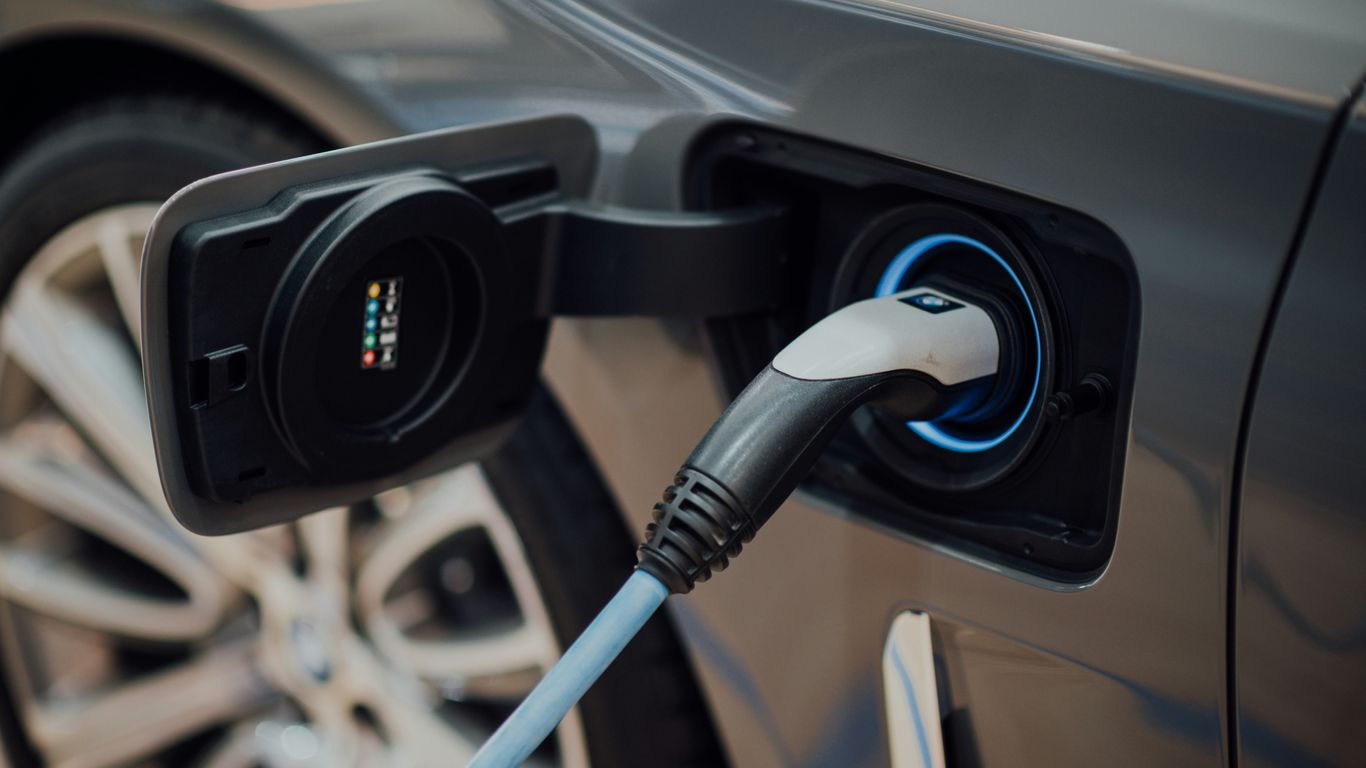
Charging your Tesla is pretty straightforward, but doing it smartly can save you time and money. Most people charge at home overnight. This is usually the cheapest option, especially if you have a time-of-use electricity plan. You can set a charging schedule in the car or the app so it only charges when electricity rates are lowest.
Here are a few tips:
Home Charging: Plug in when you get home. Set a departure time and a charge limit (usually 80-90% for daily driving) in the car's charging settings. This is best for battery health.
Supercharging: Use Superchargers for road trips. The car's navigation will tell you where they are and how long you need to charge. It's fast, but more expensive than home charging.
Charge Limit: For daily use, charging to 80% or 90% is generally better for the long-term health of your battery than charging to 100% every time.
Planning your charging around off-peak electricity hours can lead to noticeable savings on your energy bill over time. Check with your local utility provider for their specific rates.
Navigating the Tesla App Effectively
The Tesla app is your remote control for the car. It's really useful for a lot of things, not just checking your charge level. You can start charging, stop charging, set the climate control before you get in, and even move the car using Summon (if you have that feature).
Key things to use the app for:
Remote Climate Control: Turn on the AC or heat before you leave the house or office.
Charging Status: See how much your car is charged and when it will be done.
Location: Find your car if you forget where you parked.
Summon: Move your car forward or backward a short distance without being inside it (useful for tight parking spots).
Make sure your phone is linked correctly in the car's settings. It's usually as simple as pairing your phone via Bluetooth and logging into your Tesla account in the app. The app makes managing your car much easier, especially when you're away from it.
Enhancing Your Tesla Driving Experience
Making your Tesla feel like your Tesla is a big part of the ownership joy. It’s not just about getting from point A to point B; it’s about how you get there. Tesla’s software lets you tweak a lot of things to make the drive more comfortable and convenient for you.
Customizing Display and Interior Settings
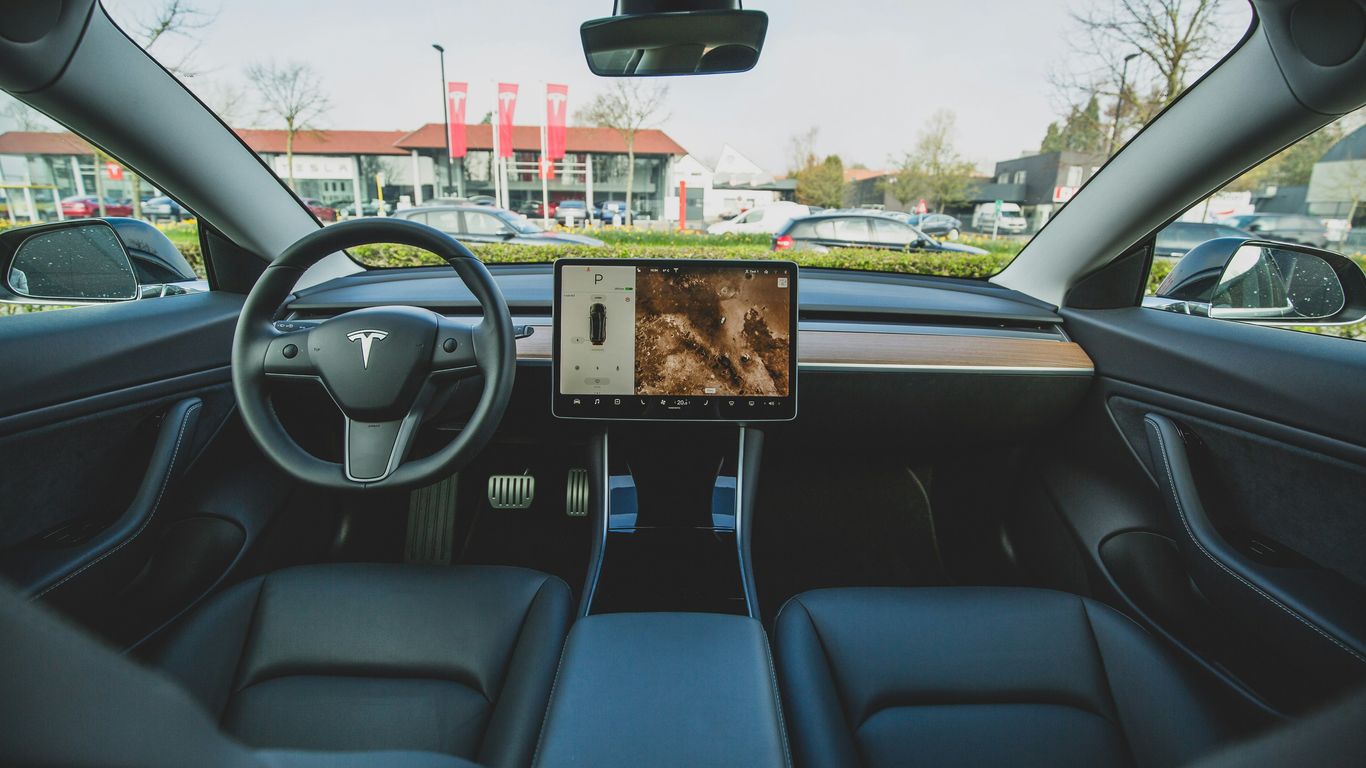
That big central screen is your command center, and you can really make it work for you. Think about what you use most often. Do you want your music controls front and center, or maybe quick access to climate settings? You can rearrange icons and choose what appears on the bottom bar. It’s a small thing, but having your favorite features just a tap away makes a difference. You can also adjust the screen’s brightness and color theme – a warmer tone might be nicer at night. And don't forget the driving modes; you can set up custom profiles for different drivers or even different moods, adjusting acceleration, steering feel, and regenerative braking.
Utilizing Voice Commands for Convenience
Talking to your car might feel a bit odd at first, but Tesla’s voice commands are surprisingly useful. You can control a lot of functions without taking your hands off the wheel. Need to turn up the heat, find a specific song, or get directions to the nearest charger? Just say the word. It’s especially handy when your hands are full or the weather is bad. The system understands natural language pretty well, so you don’t need to memorize specific phrases. Just speak like you normally would. It’s a feature that gets better the more you use it, and it really helps you keep your eyes on the road.
Exploring Entertainment Options on the Go
Long drives or waiting for a charge? Tesla’s got you covered. Beyond the usual radio, you have access to streaming music services, podcasts, and even video streaming when parked. You can also play games on the touchscreen. While it’s great to have these options, remember to use them responsibly and only when it’s safe to do so, like when you’re parked or charging. It turns downtime into enjoyable time, making those longer trips feel a lot shorter. The system is always getting updates, so new entertainment features might pop up over time, keeping things fresh. You can even connect your phone to play your own music or podcasts, giving you even more control over your in-car audio experience. For those who want to add even more to their audio setup, there are accessories like Tesla Neck Headrest Pillows that can make long drives more comfortable.
Essential Tesla Software Tips for New Owners
Initial Setup and Vehicle Personalization
Getting your Tesla set up right from the start makes a big difference. When you first get your car, take some time to go through the initial setup screens. This is where you'll pair your phone, set up your driver profiles, and get familiar with the basic controls. Don't rush this part! Setting up multiple driver profiles is super handy if you share the car. Each profile can save seat positions, mirror angles, and even climate preferences. It’s like having a car that knows exactly who’s driving.
Connecting Your Smartphone Safely
Connecting your phone is pretty straightforward, but there are a few things to keep in mind. You'll use Bluetooth for calls and audio, and the Tesla app for remote control. Make sure you download the official Tesla app and log in with your account. This app lets you check your car's status, pre-condition the cabin, and even summon your car in tight spots. It’s a really useful tool for managing your vehicle when you’re not in it. For a smooth connection, always ensure your phone's Bluetooth is on and that you grant the app the necessary permissions when prompted. You can find a lot of helpful videos on setting this up, like those covering Tesla buyer guides.
Understanding Software Updates and New Features
Tesla cars get better over time through over-the-air software updates. You'll get notifications on your car's screen when an update is available. It's a good idea to install these updates when you have some downtime, like overnight. They can add new features, improve existing ones, or even fix bugs. Some updates might require you to be parked. Always read the release notes that come with the update so you know what's new. It’s pretty cool how your car can get new capabilities just by downloading software, almost like a smartphone.
Advanced Tesla Software Tricks
Okay, so you've got the basics down. Autopilot is your co-pilot, charging is a breeze, and the app is practically an extension of your hand. But what about those little extras, the things that make your Tesla feel truly smart? Let's talk about some advanced software tricks that can really make a difference in your day-to-day driving.
Leveraging Tesla's Navigation System
Tesla's navigation is more than just getting from point A to point B. It's deeply integrated with your car's battery and charging needs. When you plan a trip, especially a longer one, the system automatically calculates charging stops for you. It doesn't just pick any Supercharger; it considers your current battery level, the Supercharger's availability, and even how long it might take to charge based on current conditions. This predictive charging is a game-changer for road trips.
Here's how to get the most out of it:
Pre-condition your battery: Before heading to a Supercharger, the car will automatically start warming or cooling the battery to ensure optimal charging speeds. You'll see a notification when this is happening.
Add stops strategically: If you know you want to stop somewhere specific along your route, add it as a destination. The navigation will then recalculate charging stops around your planned stops.
Check charger details: Tap on a Supercharger icon on the map to see how many stalls are available and what the current charging speed is.
Maximizing Energy Efficiency Settings
Saving energy isn't just about the environment; it's about getting more miles out of every charge. Tesla offers several settings to help you do just that.
Adjust Acceleration Mode: While 'Ludicrous' or 'Insane' modes are fun, using 'Chill' mode can significantly improve your range. It smooths out acceleration, making it less demanding on the battery.
Enable 'Creep' Mode: This setting controls how the car moves when you take your foot off the brake. 'Creep' allows the car to slowly move forward, similar to a traditional automatic. 'Roll' lets the car coast, and 'Hold' keeps it stationary until you press the accelerator. 'Roll' or 'Hold' can save a bit of energy in certain situations.
Monitor Energy Usage: The energy graph on your display is super informative. It shows you real-time consumption and can help you identify what's using the most power (e.g., climate control, aggressive driving).
Utilizing Sentry Mode and Dashcam Features
These features are built-in security and recording tools that can be incredibly useful. Sentry Mode uses your car's cameras to detect potential threats when parked, while the Dashcam records your drives.
Sentry Mode: You can set it to activate in specific locations (like your home or work) or always when parked. If it detects movement, it will record footage and alert you via the app. Be mindful of battery drain, especially in colder weather.
Dashcam: To use the Dashcam, you'll need a USB drive formatted correctly (FAT32). Insert it into a USB port, and the car will start recording. You can save clips manually by tapping the camera icon on the screen or let it record continuously and review later.
These built-in tools offer peace of mind and a record of events, whether it's a minor parking lot incident or just capturing an interesting moment on the road. Just remember to manage the storage space on your USB drive.
Getting a handle on these advanced features can really change how you interact with your Tesla, making it more efficient, secure, and just plain cooler to drive.
Troubleshooting and Maintenance Software
Even with the best tech, sometimes things don't go as planned. Understanding how to read your Tesla's alerts and knowing how to handle software updates can save you a lot of headaches. It's not as complicated as it might seem, and a little knowledge goes a long way.
Interpreting Vehicle Alerts and Diagnostics
Your Tesla will let you know if something needs attention. These alerts pop up on the main screen, and they can range from minor things to more serious issues. Don't ignore them, even if they seem vague at first.
Here's a quick look at what some common alerts might mean:
Yellow Alerts: Usually indicate a non-critical issue that needs attention soon, but you can likely continue driving. Think of things like a tire pressure warning or a minor sensor issue.
Red Alerts: These are more serious and often mean you should stop driving as soon as it's safe and contact Tesla service. This could be related to the powertrain or braking system.
Blue Alerts: These typically relate to features that are currently unavailable, like Autopilot being temporarily disabled due to weather conditions.
It's always a good idea to check the owner's manual or the Tesla app for a more detailed explanation of any specific alert you see. They often provide context and recommended actions.
Performing Software Updates Safely
Tesla vehicles get regular software updates that add new features and improve existing ones. These updates are usually pretty straightforward, but there are a few things to keep in mind.
Connect to Wi-Fi: For larger updates, it's best to be connected to a Wi-Fi network to avoid using your cellular data and to ensure a stable download.
Ensure Sufficient Charge: Make sure your car has at least 50% battery charge, or is plugged in, before starting an update. You don't want the car to die mid-update.
Schedule When Convenient: You can choose to install updates immediately or schedule them for a later time, like overnight. Pick a time when you won't need the car.
Never interrupt a software update once it has started. This can potentially cause issues with the vehicle's systems. Just let it run its course.
Accessing Remote Diagnostics and Support
If you run into a problem that you can't figure out, Tesla offers ways to get help remotely. Your car can send diagnostic information directly to Tesla service. This helps them understand the issue before you even bring it in, or sometimes they can even fix it remotely.
Tesla App: Use the app to report issues, schedule service appointments, and even chat with support.
Remote Diagnostics: When you allow it, your car shares data that helps technicians diagnose problems. This is a huge time-saver.
Service Center: For issues that can't be resolved remotely, you can schedule a visit to a Tesla Service Center through the app or by calling them.
Being proactive with alerts and understanding the update process makes managing your Tesla much smoother. It's all about staying informed and knowing where to find help when you need it.
Keeping your software running smoothly is key. Our "Troubleshooting and Maintenance Software" section offers simple guides to fix common issues and keep your programs in top shape. If you're facing a glitch or just want to learn how to keep things running well, we've got you covered. Visit our website today for easy-to-follow tips and tricks!
Keep Enjoying Your Tesla
So there you have it. A few simple tricks and tips to make using your Tesla even better. It’s not always obvious what’s possible with these cars, but a little know-how goes a long way. Whether it’s using the app like a pro, finding hidden features, or just keeping things tidy with the right accessories, these small things add up. Hopefully, this helps you get more out of your electric ride every single day. Happy driving!
Frequently Asked Questions
What is Autopilot and how does it make driving easier?
Autopilot is like a smart co-pilot for your Tesla. It helps with steering, speed control, and even changing lanes on the highway. Think of it as cruise control that can also keep you centered in your lane and adjust your speed based on traffic. It's designed to make long drives less tiring and highway commutes smoother, but remember, you always need to keep your hands on the wheel and pay attention!
How can I make charging my Tesla more convenient?
Charging can be super easy! You can plug it in at home overnight, so you wake up with a full 'tank' every morning. For longer trips, Tesla's Supercharger stations are fast and widely available. Planning your charging stops using the car's navigation system is also a great trick. It shows you where chargers are and how long you'll need to stop.
What's the best way to use the Tesla app?
The Tesla app is like a remote control for your car. You can check your car's charge level, start charging, unlock doors, and even move your car in tight spots using 'Summon.' It's also where you'll get important notifications and can control things like the climate control before you even get in the car. Definitely explore all its features!
How do I set up my Tesla for the first time?
When you first get your Tesla, the car will guide you through the setup. You'll connect your phone, set up your driver profile, and get familiar with the main screen. Personalizing settings like your seat position, mirrors, and driving preferences makes the car feel like yours right away. Don't skip this step – it makes everything else easier!
What are Sentry Mode and Dashcam, and how do they work?
Sentry Mode is like a security guard for your parked Tesla. If someone gets too close or bumps your car, it records video using the external cameras and alerts you via the app. The Dashcam uses the same cameras to record your drive, which can be helpful if you ever need to show what happened in an accident. You'll need a USB drive to save the recordings.
How do I know if my Tesla needs a software update, and how do I install it?
Your Tesla will let you know when a software update is available, usually with a notification on the screen. Most updates happen automatically over Wi-Fi when the car is parked. You can also check for updates manually in the car's settings. It's good practice to install them when prompted, as they often add new features or improve existing ones.


Comments