
Cybertruck Hidden Features Owners Should Know
Key Takeaways
The Cybertruck hides many useful controls in menus, gestures, app shortcuts, and less-obvious physical locations. A few minutes spent learning them can make everyday driving, charging, and parking feel much less fiddly.
Explore shortcut menus and steering-wheel controls before relying on longer touchscreen paths.
Check software version, trim, and regional availability before assuming a feature is present.
Use the phone app for selected climate, lock, charging, camera, and navigation tasks.
Treat driving assistance, remote access, and emergency releases as convenience tools with limits.
Confirm fit and compatibility when choosing accessories for a specific Cybertruck model and year.
Finding Cybertruck’s less-obvious controls and settings
The Cybertruck puts a remarkable number of ordinary vehicle functions behind a screen, a button, or a gesture. That keeps the cabin visually simple, but it also means some useful controls are easy to miss during a quick delivery walkthrough. Start exploring while parked, and make a note of the shortcuts you actually use rather than trying to memorize every menu.
The broader hidden-features guide is useful background for this approach because it groups shortcuts, secret menus, app controls, and driving settings in one place. The exact path on a Cybertruck can still depend on its software and configuration.
Using the touchscreen shortcut menu more efficiently
The touchscreen shortcut area is worth treating as a customizable workspace rather than a fixed row of icons. Common controls can be brought closer to hand, reducing the need to move through several menus for climate, lights, or other frequently used settings. Spend a minute rearranging it while parked, then test the result before driving.
A shortcut is most helpful when it matches a real routine. If you regularly adjust cabin temperature or lighting, put those controls where a quick glance can find them. Avoid filling the row with options you rarely touch; a crowded shortcut area defeats the purpose.
Customizing steering-wheel scroll-wheel actions
The steering-wheel scroll wheels can do more than their most obvious functions, and the available actions may be customizable. This is especially useful for owners who prefer to adjust a setting without reaching toward the center display. Try one change at a time so you know which wheel movement produces which result.
The best setup is personal. One driver may favor audio or temperature adjustments, while another may prefer a different frequently used command. Keep your eyes on the road and make changes only when conditions allow.
Accessing camera views and less-visible vehicle menus
Camera views and vehicle menus are often reached through small icons or secondary screens rather than the main driving display. Explore them while stationary, including the areas that reveal additional camera feeds or settings not shown on the first page. This gives you a better sense of what is available before you need a view while parking.
Do not assume that a menu shown in an older tutorial will look identical on your truck. Software can move controls, rename options, or add new ones, so the owner’s manual and the current screen should take priority over a remembered shortcut.
Checking which features vary by software version or trim
A hidden feature is not necessarily a universal feature. Software version, hardware, trim, region, and optional services can all affect what appears in the menus. The Model Y settings guide makes the same practical point for another vehicle: check the specific configuration instead of assuming that every Tesla has the same controls.
Before troubleshooting a missing option, check the vehicle’s software screen and look for update notices. That simple check can prevent a lot of unnecessary searching, especially when a feature has been added, renamed, or made available only to certain configurations.
Hidden Tesla app and phone controls for the Cybertruck
The phone app extends ownership beyond the driver’s seat, but it is not a duplicate of the center screen. It provides selected remote commands, status information, and camera access, subject to connectivity and account permissions. Set it up carefully, use a strong phone passcode, and remember that remote commands may take time to reach the vehicle.
These controls are particularly handy when the truck is parked outside, charging, or waiting in a hot or cold lot. They are conveniences, not substitutes for checking the vehicle in person when safety or security matters.
Using live Sentry Mode and remote camera viewing
Live Sentry Mode and remote camera viewing let an authorized user check selected vehicle camera views from the phone app when the required conditions are met. This can be useful for seeing what is happening around a parked vehicle rather than relying only on a saved alert.
Availability may depend on connectivity, settings, subscriptions, and local requirements. Treat the live view as situational information, not as a guarantee that every angle or event will be visible.
Sending an address from your phone to the Cybertruck
Sending an address from a phone is a simple way to prepare navigation before getting into the truck. It is most useful when you are still inside, looking up a destination, or receiving an address in a message. Check the destination on the vehicle screen before setting off, since a copied address can still be incomplete or incorrect.
This kind of small handoff saves time on short trips. It also keeps destination research out of the first few minutes of driving, when attention should be on the road and surroundings.
Managing climate, windows, locks, and charging remotely
The app can provide quick controls for selected climate, lock, window, and charging tasks. For example, an owner may check charging status, start or stop climate, close available windows, or confirm that the truck is locked without returning to the vehicle. The commands shown to you are the ones that matter; do not expect every control on every configuration.
Remote commands depend on the truck being reachable and may not happen instantly. After sending one, give the app time to update and verify the resulting status rather than repeatedly tapping the same command.
Adding Tesla app widgets and voice controls with Siri
A phone widget can place frequently used vehicle actions closer to the lock screen or home screen. Voice controls through Siri can also reduce the number of taps for supported actions, provided the phone, app, permissions, and account are configured correctly.
Keep voice commands narrow and confirm what was sent. A widget or voice shortcut should make a familiar action easier, not encourage remote operation without checking the vehicle’s surroundings.
Driving features that can make everyday trips easier
Several settings are easy to overlook because they appear only in specific driving situations. The useful habit is to learn them before a slippery road, a busy highway, or an unexpected screen change makes the moment stressful. Practice only when parked or in a suitable safe location, and follow the vehicle’s on-screen instructions.
Driver-assistance features still require an attentive driver. A shortcut can reduce menu hunting, but it does not change the responsibility to supervise the vehicle or comply with local traffic rules.
Changing Autopilot speed without navigating multiple menus
A quick control can make it easier to lower the selected Autopilot speed without opening several screens. That is helpful when traffic slows or road conditions change. Learn the control while stationary so the movement is familiar before you need it on a live road.
Speed changes should remain deliberate. A lower setting may be appropriate for a changing traffic flow, but the driver must continue monitoring the road, the system, and the surrounding vehicles.
Dismissing recurring Autopilot prompts appropriately
Recurring prompts are reminders that the driver must remain attentive, not invitations to disable supervision. Some interfaces provide a quicker way to acknowledge a prompt, but the proper response is still to place your hands and attention where the vehicle expects them.
If prompts appear unusually often, consider whether the system is detecting inattentive behavior or whether the road situation is making assistance unsuitable. Do not treat dismissing a notice as proof that the underlying concern has gone away.
Using Slip Start when traction is limited
Slip Start is a setting intended for situations where extra wheel slip may help the vehicle move from a low-traction surface. It belongs to a specific recovery situation, not normal dry-road driving. Once the truck is moving normally again, return to the usual setting if the vehicle directs you to do so.
Use caution around snow, mud, sand, and uneven ground. If the truck cannot move safely, stopping to reassess the surface and surroundings is better than repeatedly applying power.
Switching gears and understanding the safety restrictions
The Cybertruck’s gear selection is screen-centered, with safety restrictions designed to prevent unintended movement. Some related guides describe switching gears while in motion, but that does not mean every change is available at every speed or in every condition. Follow the on-screen response and never force a selection that the vehicle rejects.
Before driving, learn the normal positions and the backup controls described for your truck. A familiar routine matters more than memorizing a trick, especially if the main display is slow or temporarily unavailable.
A hidden control is useful only when you can use it calmly and safely.
That principle applies to every driving shortcut in this section. Practice turns an unfamiliar gesture into a predictable action, while improvising at speed adds unnecessary risk.
Charging, battery, and range features worth knowing
Charging controls can feel scattered between the center display, the mobile app, the connector, and the charge-port hardware. Once the basic paths are familiar, everyday charging becomes less of a hunt. The most important distinction is between a normal software command and a physical emergency release.
Range estimates are also easier to interpret when you remember that they are estimates, not promises. Temperature, speed, terrain, payload, and accessory use can all influence the trip ahead.
Unlocking the charge port from the screen, app, or connector
The charge port can be opened or unlocked from more than one place, including the vehicle screen, the phone app, or a compatible connector interaction. Learn at least two methods before your first public charging stop so a single unresponsive control does not leave you guessing.
Keep the connector supported while removing it, and watch for the vehicle’s confirmation before pulling. If the port remains locked, stop rather than applying force and move to the documented release procedure.
Finding the mechanical charge-port release for emergencies
A mechanical charge-port release is intended for situations in which the normal electronic method does not work. Find its location in advance, while the truck is parked, and understand how it is meant to be used. The release is not a faster everyday shortcut.
The emergency location can be easy to forget because it is deliberately out of the way. A small note in your delivery checklist or owner notes may save time when the vehicle has no usable screen response.
Using battery preconditioning before fast charging
Battery preconditioning prepares the battery for a fast-charging stop when the vehicle knows the destination or charging plan. Starting navigation to the charger with enough lead time can allow the vehicle to prepare rather than arriving and immediately asking for maximum charging performance.
This feature is most useful as part of a trip plan, not as a switch to press randomly. Give the system time, and remember that actual charging speed still depends on the charger, battery state, temperature, and other conditions.
Reading the battery and range displays more effectively
The battery and range icon can show information in a compact form that is easy to overlook. Learn what the selected display represents and compare it with the route, recent driving, and charging status instead of treating one number as a fixed promise.
For longer trips, use the navigation estimate and allow a sensible reserve. A range display is most useful when read as part of a larger picture rather than watched in isolation.
Display or control | Best use | Owner habit |
|---|---|---|
Battery percentage | Checking current charge | Compare it with the planned trip |
Estimated range | Making a rough route judgment | Allow reserve for conditions |
Charging status | Confirming an active session | Verify after sending a command |
Charge-port control | Starting or ending access | Keep the connector supported |
The table is a quick reminder that each readout answers a different question. Use the percentage for the immediate state, the estimate for planning, and the charging status to confirm that the vehicle is actually doing what you intended.
Convenience settings for the cabin and cargo area
Some of the nicest shortcuts are not dramatic at all. They are small adjustments that remove repeated annoyances: a visor that stops short, a powered cover that opens too high, or an alert that wakes a sleeping passenger. These settings are worth learning because they affect almost every ordinary trip.
The same care applies to physical additions. If you later add organizers, liners, or comfort accessories, check the exact model and year before buying; an item that fits one Tesla vehicle or production version may not fit another.
Extending the sun visor for better windshield coverage
The sun visor can be extended to improve coverage when the sun reaches the gap that a normal swing does not handle. It is a small physical adjustment, but it can make a noticeable difference on a low-sun commute.
Set it while parked or before moving, and make sure it does not obstruct your view. The goal is better glare control without creating a new visibility problem.
Setting and saving the powered tonneau cover height
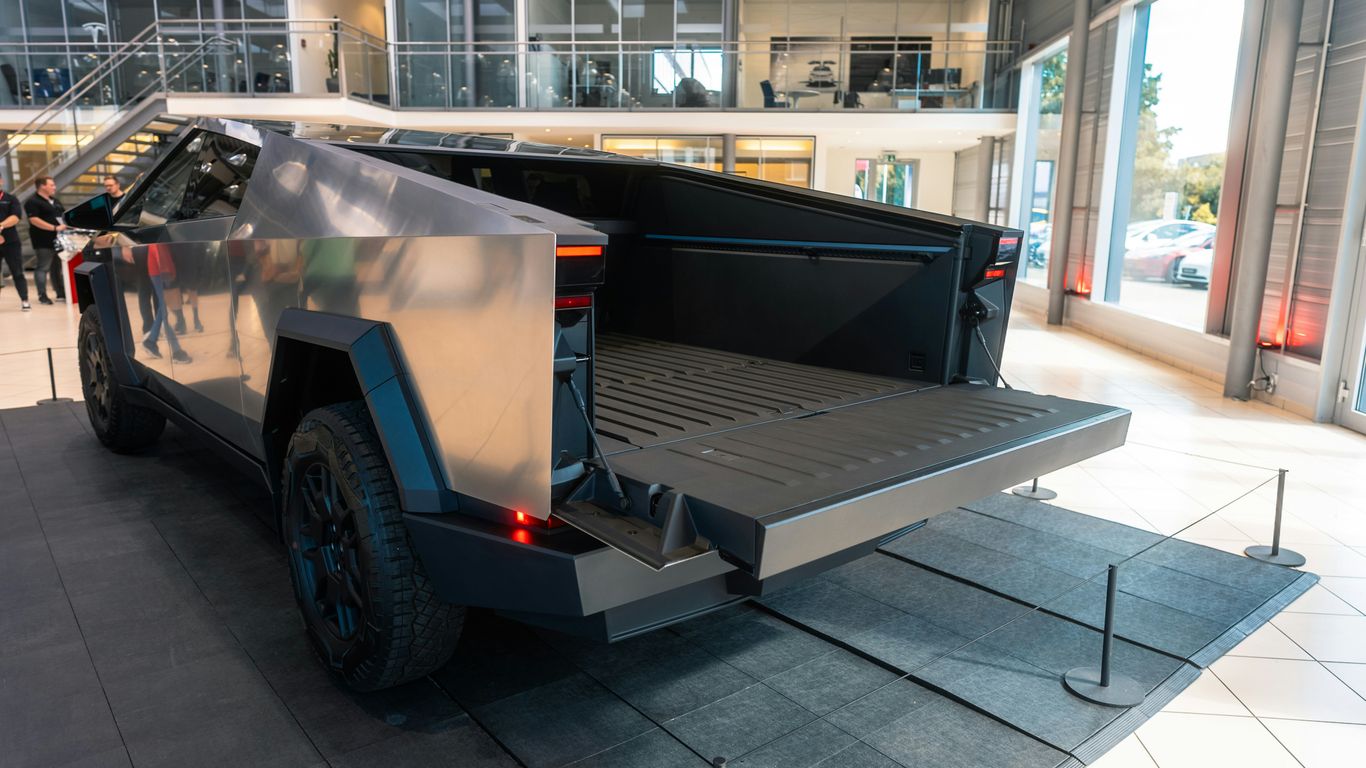
The powered tonneau cover can be set to a preferred opening height in the supported configuration. This is helpful in a garage or beneath a low overhead door where the full travel could create a clearance issue. Position it carefully, then use the documented save action rather than repeatedly stopping it by hand.
Test the stored height with the surrounding area clear. If the truck’s software or trim does not show the setting, do not assume the control is broken; availability can vary.
Finding the Cybertruck’s parking brake controls
The electronic parking brake may be less familiar than a traditional hand lever or foot pedal. Locate its control while parked and learn the visual confirmation that indicates the truck is secured. Knowing where it is matters most when you are on an incline or handing the vehicle to another driver.
Use the normal Park procedure as directed by the vehicle. The parking brake control is a useful backup to understand, not a reason to improvise with gear selection.
Using Joe Mode and gesture controls around passengers
Joe Mode reduces notification volume for situations where a loud alert would disturb passengers. It is a thoughtful setting for early departures, sleeping children, or quiet conversations, although the driver should still remain aware of important vehicle warnings.
Gesture controls can also provide quick interactions when supported. Learn them before passengers begin experimenting, and make sure a gesture does not distract the driver or trigger an action accidentally.
If you are improving the cabin beyond software settings, browse Cybertruck comfort accessories and check compatibility carefully. Practical items such as organizers or floor protection can support the same everyday goal without pretending to be part of the vehicle’s original equipment.
Cybertruck security and privacy features
Security settings work best when configured before the truck is parked in a busy place, not after something unusual appears in a notification. Camera recording, remote viewing, account access, and driver authentication each involve different tradeoffs. Review them with the people who are authorized to use the vehicle.
Privacy also deserves a deliberate look. Understand what footage is saved, who can access the account, and when a remote camera feature is available in your region and configuration.
Configuring Sentry Mode for different parking situations
Sentry Mode can be configured for different parking situations, including choices about when recording is enabled or excluded. A home location, workplace, or familiar garage may call for a different setting from a public lot. Check the status after changing it rather than assuming the last choice carried over as expected.
Recording behavior, storage, connectivity, and local rules can affect what you see later. Use the feature as an additional layer of awareness, not as a guarantee that every incident will be captured.
Reviewing camera access and saved security footage
Saved security footage should be reviewed through the vehicle or another supported access method, using the storage device and settings associated with the truck. Look for the relevant time and event rather than scrolling aimlessly through every clip.
Remote camera viewing is different from saved footage: one shows a current view when available, while the other preserves an earlier event. Keep those roles separate when deciding what evidence or information you actually have.
Using PIN to Drive and other access protections
PIN to Drive adds a passcode requirement before the truck can be driven. It is particularly useful when multiple people have physical access to the vehicle or when you want an additional barrier beyond a phone key or key card.
Choose a code you can remember without writing it in the cabin. Review phone permissions, key cards, and account access periodically, especially after lending the truck or replacing a phone.
Understanding remote-driving permissions and limitations
Remote-driving access is governed by permissions, account status, connectivity, and the controls available in the app. A person who can view status may not have every driving or remote command available. Treat access as something to audit, not something to share casually.
Remote operation also has practical limits: the vehicle may be out of range, a command may be unavailable, or a safety condition may block it. When a situation requires certainty, inspect the truck in person.
Troubleshooting and software features owners may overlook
A temporary screen or infotainment problem does not always require a service visit. A careful reboot, a software check, and a review of the vehicle’s current status can resolve minor issues or at least narrow down what is happening. Do these steps while parked and never troubleshoot a moving vehicle.
Software changes can also alter familiar menus. A feature that seems to have vanished may have moved, while a newly added option may be waiting in a menu you have never opened.
Performing a touchscreen reboot with the steering-wheel controls
A touchscreen reboot can be initiated with the steering-wheel controls using the documented button-and-wheel procedure for the vehicle. Keep the truck stationary, select a safe location, and wait for the display to return before continuing. Do not treat a reboot as a substitute for addressing a warning that remains afterward.
The quick reboot guide places this action alongside other practical shortcuts, which is a useful reminder that a reset is a troubleshooting step rather than a daily feature.
Knowing when a reboot can resolve a temporary glitch
A reboot may help when the infotainment display is slow, a menu has failed to load, or a temporary interface issue appears. It does not repair physical damage, a persistent warning, a connectivity failure outside the vehicle, or a fault that returns immediately.
Record what happened before restarting if the issue is serious. If the symptom continues, use the vehicle’s support process instead of repeating resets and hoping the warning disappears.
Checking for software updates and newly added features
The software screen is worth checking after delivery and periodically afterward. Updates can change menu placement, add features, adjust behavior, or make an older tutorial inaccurate. Read the release information when it is available and test unfamiliar controls while parked.
A useful ownership habit is to keep a short list of changes after each update. That turns a vague feeling that “the screen looks different” into a practical record you can refer to later.
Separating Tesla easter eggs from practical vehicle functions
Easter eggs can be fun, but they should not be confused with settings that improve charging, visibility, security, or daily comfort. The Cybertruck impressions guide is better suited to understanding the vehicle’s distinctive design and practical details, while a playful menu item is simply a bit of entertainment.
Try novelty features only when parked and never present them as safety equipment. The most valuable hidden controls are usually the quiet ones that save time or prevent a small problem.
Make Your Cybertruck More Practical
Once the software is familiar, look at accessories that solve a real need: cabin protection, storage, charging, travel, or comfort. Browse the Cybertruck accessory collection, then confirm model, year, and fit before ordering; purchases are completed through Amazon, where current pricing, availability, shipping, returns, and customer service apply.
Conclusion
The best hidden features are the ones that quietly make ownership easier: a faster shortcut, a better charging routine, a clearer security setup, or a more comfortable cabin. Explore them slowly, confirm what your software and trim support, and keep safety ahead of convenience.
Frequently Asked Questions
Are hidden vehicle features available on every Cybertruck?
No. Feature availability can vary with software version, hardware, trim, region, and optional services. Check the vehicle’s own menus and current documentation.
Should I test unfamiliar controls while driving?
No. Learn new controls while parked or in another safe setting, then use them only when you can maintain full attention on the road.
What is the difference between live camera viewing and saved footage?
Live viewing shows a current camera view when the required conditions are met. Saved footage records an earlier event for later review, and the two functions may have different requirements.
Why might a remote command fail?
The vehicle may have poor connectivity, the phone app may be outdated, a safety condition may block the command, or that control may not be supported by the specific configuration.
When should I use a mechanical charge-port release?
Use it only when the normal electronic release does not work and follow the vehicle’s documented emergency procedure. It is not intended as the normal charging method.
Can a touchscreen reboot fix every problem?
No. A reboot may resolve a temporary infotainment glitch, but it will not repair physical damage or necessarily clear a persistent vehicle warning. Seek support when the problem remains.
How should I choose accessories for a Cybertruck?
Start with the specific model, production year, and intended use. Compare compatibility details and owner feedback, and remember that aftermarket products are not automatically suitable for every vehicle configuration.


Comments