
Hidden Features in the Tesla Model Y Juniper
Key Takeaways
The Model Y Juniper places many useful controls behind small icons, gestures, and app menus. A few minutes exploring them can make everyday driving calmer and more convenient.
Check the car’s software version before assuming a feature is available.
Use the center display and steering-wheel scroll wheels for faster adjustments.
The Tesla app can handle several routine controls from outside the vehicle.
Charging, range, and parking shortcuts are most useful when practiced in advance.
Treat hidden menus and emergency releases as tools to understand, not settings to experiment with casually.
What makes the Model Y Juniper’s features easy to miss
The Model Y Juniper combines physical changes with software that can shift after an update. That means two vehicles with similar names may not show exactly the same controls. The best approach is to learn the pattern behind the menus rather than memorize a single screenshot.
Hardware and software changes that affect feature availability
Some functions depend on the equipment installed in a particular vehicle, while others are simply tucked into software menus. The Juniper refresh is associated with changes such as a rear passenger touchscreen and revised cabin controls, but the exact interface can still vary by vehicle. A feature shown in a video may therefore be absent, renamed, or placed somewhere else in your car.
Before troubleshooting, confirm whether the control is meant to be physical or digital. A camera view, charge-port release, seat adjustment, or display shortcut may each use a different path, and forcing the wrong one can waste time.
Features that depend on region, trim, or software version
Availability can change with market, trim, connectivity status, and software version. Driver-assistance prompts, entertainment services, camera views, and phone integrations are especially likely to vary. Even a familiar feature may receive a quieter redesign after an over-the-air update.
This simple reference helps separate a missing feature from a hidden one:
What may vary | Why it matters | First check |
|---|---|---|
Trim and hardware | Equipment can determine whether a control exists | Review the vehicle configuration |
Region | Services and settings may differ by market | Check local availability |
Software version | Updates can add, move, or rename controls | Open the software screen |
Connectivity | Some app and media functions require a connection | Confirm the car is online |
After checking those basics, search the current menus rather than relying on an older tutorial. That small habit prevents many false alarms.
How to check for new features after an over-the-air update
Open the vehicle’s software area and read the release notes after an update. Then sit in Park and look through the relevant controls once, even if the update seems minor. The Model Y Juniper update guide is useful background for owners comparing the refreshed vehicle with earlier descriptions.
A short test in the driveway is safer than discovering a changed control while moving. If a setting affects driving assistance, visibility, or charging, verify its behavior at a standstill and keep your attention on the road once you leave.
Hidden controls on the center display
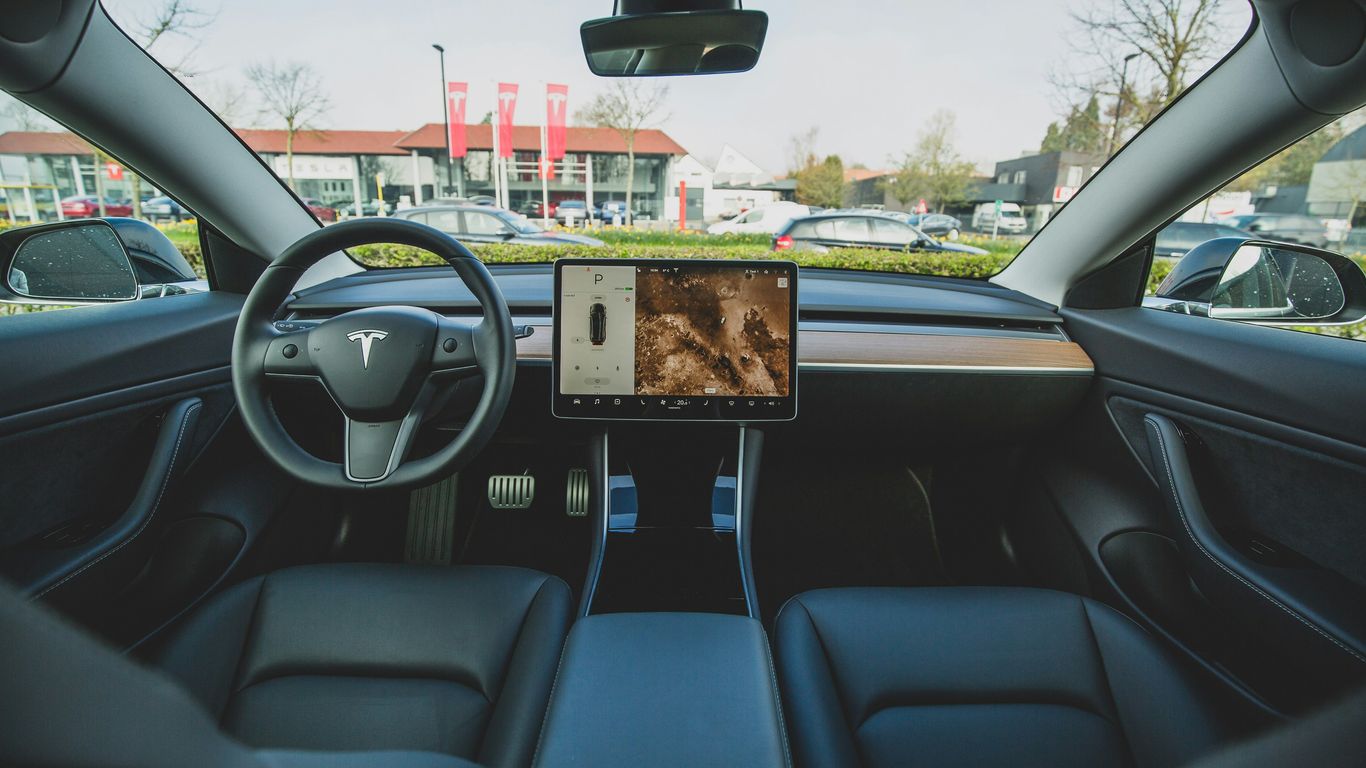
The center display is less mysterious once you recognize which icons expand into secondary menus. Several everyday controls are available from quick panels, while others appear only after pressing and holding or swiping. The goal is not to keep your eyes on the screen longer, but to reduce the number of taps when parked or stopped safely.
Quick controls for lights, climate, and vehicle settings
The light controls can be reached quickly from the vehicle interface instead of opening the full settings tree. Climate also has a fast route for changing temperature, airflow, and related options, and the climate panel can be turned off without hunting through multiple screens.
Practice these shortcuts while parked. Once familiar, they make small adjustments feel less disruptive, especially when a passenger asks for a temperature change or the cabin needs a quick defogging adjustment.
Fast ways to dismiss Autopilot prompts and adjust driving settings
When an Autopilot prompt appears, the steering-wheel scroll controls can provide a faster response than reaching toward the display. The same controls can help lower the set speed quickly when the system is active, provided the driver remains responsible for the vehicle and follows all on-screen instructions.
These are convenience shortcuts, not a substitute for attention. Use them only when the driving situation allows, and never treat a dismissed prompt as permission to stop monitoring the road.
Customizing the media bar, scroll wheels, and touchscreen shortcuts
The media bar can disappear from view, but it can usually be brought back through the display layout. Steering-wheel scroll wheels also support more than volume changes; their behavior can be customized for selected functions, depending on the software version.
Look for customization options instead of assuming the factory layout is fixed. Owners who want a broader collection of examples can compare these controls with the hidden settings guide, then confirm every step on their own vehicle.
Using gestures and voice commands to reduce screen taps
Swipes and simple gestures can move between panels or adjust certain controls without opening a long menu. Voice commands can also reduce screen taps for navigation and vehicle functions, though the car may ask for confirmation or interpret a request differently than expected.
Try one command at a time while parked and speak plainly. Fewer screen taps matter most when they keep routine tasks brief, not when they encourage the driver to operate complex settings in motion.
Tesla app features that improve daily convenience
The phone app is often the quickest way to interact with the car before leaving home. Its controls are particularly handy for a hot cabin, a forgotten lock, or a charging check from indoors. Menu names and available actions can vary, so use the current app rather than an old screenshot.
Adding Tesla app widgets for faster vehicle controls
A phone widget can place common vehicle actions on the home screen, reducing the need to open the full app. Setup depends on the phone platform, but the useful idea is the same: keep only the controls you use often and remove shortcuts that could be triggered accidentally.
A widget is most valuable for quick status checks and familiar actions. Test it once after installation, then use the app directly when you need more context.
Sending an address from your phone to the Model Y
A destination can be shared from a phone to the vehicle so it is ready in the navigation system before departure. This is useful when an address arrives in a message or when searching on a larger phone screen is easier than typing into the car.
Confirm the destination on the vehicle display before driving. A shared address is only a starting point; check the route, road conditions, and arrival range yourself.
Controlling climate, windows, charging, and locks remotely
Remote controls can start or stop climate conditioning, check charging, and manage locks from a distance. Some versions also expose window controls, but the exact choices depend on the vehicle and app version. Remote climate is especially practical when the car is parked outside and you want the cabin ready before walking out.
Use remote actions deliberately around children, pets, and enclosed spaces. For accessory planning around storage, charging, and cabin organization, AccessoriesForTesla.com groups options by Model Y Juniper compatibility rather than treating every item as universal.
Using Live Sentry Mode and accessing the car’s camera views
Live Sentry Mode can let an owner view available vehicle camera feeds through the app when the required conditions and access are present. Camera access is a security convenience, not a guarantee that every angle is always available or that the connection will work instantly.
Check privacy settings and app permissions before relying on the feature. It is also sensible to learn how recording and viewing behave in your region, since legal and service limitations can apply.
Connecting Tesla controls with Siri and other phone assistants
Phone assistants can provide another route to selected vehicle controls. Siri integration and similar tools may require setup in the app and on the phone, and supported commands can change with software updates.
Keep the command list small and test it while parked. For owners who spend long periods away from a screen, a separate text-to-speech guide can also help turn reading into audio, though it is unrelated to vehicle control.
Driving, parking, and security features worth knowing
Some of the most useful hidden functions are not entertainment features at all. They help with a stuck charge cable, a low garage door, poor traction, or a situation where the usual key or screen control is inconvenient. Learn them before you need them, preferably with the vehicle stationary.
Unlocking doors and opening the charge port without the usual controls
The app, phone key, and display each offer familiar ways to unlock the vehicle or open the charge port. There is also a manual release for a charging cable if the normal release does not work, but it should be used carefully and only according to the vehicle instructions.
Do not pull on a cable that is still locked or energized. If the port or connector does not release normally, stop and check the current owner documentation before reaching for the emergency mechanism.
Setting a custom trunk height for garages and low-clearance areas
The powered liftgate can be set to a lower opening height when a garage ceiling, shelf, or overhead door leaves little clearance. Open the trunk to the desired position, then use the vehicle’s save-height control if shown in the current interface.
Test the setting with the area clear. A remembered height is helpful, but it does not detect every object around the hatch, so the driver still needs to watch the opening path.
Finding and using the electronic parking brake
The parking brake control is easy to overlook because it is presented through the vehicle interface rather than a large traditional lever. Learn where it appears when the vehicle is in Park and understand the indicator that confirms its state.
Avoid searching for it while stopped in an unsafe location. A calm practice session makes the control easier to find during a hill stop, loading task, or unusual parking situation.
Activating Slip Start for low-traction situations
Slip Start is intended for situations where the vehicle needs help moving on a low-traction surface. It changes how the car permits wheel slip, so it is not a setting to leave on during ordinary driving.
Activate it only when the conditions call for it, then turn it off once the vehicle is free. The low-traction driving tips provide a useful reminder to treat this as a situational aid rather than a performance mode.
Understanding remote driving access and its safety limitations
Remote driving access can move the vehicle a short distance under tightly controlled conditions, where supported. The driver must remain attentive, keep the surroundings clear, and be ready to stop the vehicle.
Never use remote access to take risks around people, traffic, walls, or a closed garage. A phone connection does not remove the need for direct observation, and local rules or vehicle limitations may restrict the feature.
Charging, battery, and range shortcuts
Energy information can look simple until weather, speed, elevation, and charging behavior begin changing the estimate. The most useful shortcuts help you understand what the car is calculating and prepare the battery before a demanding drive. They do not turn a range estimate into a fixed promise.
Reading battery and range information from the vehicle interface
The battery icon can show both charge level and an estimated range, depending on the selected display. Tap or open the energy information when you need more context, and compare the estimate with the route rather than reading it in isolation.
A percentage is often easier to plan around than a distance estimate. Use the number that best matches your trip, but keep a margin for weather, traffic, and unexpected detours.
Preconditioning the battery before Supercharging or cold-weather driving
Battery preconditioning prepares the battery for a charging stop or for cold-weather driving. Starting navigation to a fast charger may begin the preparation automatically when the vehicle supports it, while scheduled departure and climate settings can help with morning routines.
Allow enough time for the process and expect conditions to affect it. Preconditioning uses energy, but arriving with a battery at a more suitable temperature can make the stop more predictable.
Using Trip Planner to account for charging stops and arrival range
Trip Planner estimates charging stops and projected arrival range along a route. Enter the complete destination before leaving, then review the suggested stops rather than blindly following them.
Routes can change with traffic, temperature, elevation, and driving style. Keep an eye on the arrival estimate during the trip and adjust speed or charging time early if the margin narrows.
Recognizing when a displayed range estimate may change
Displayed range is an estimate based on consumption assumptions and current conditions. Cold temperatures, headwinds, high speeds, heavy loads, and repeated short trips can all make the estimate move faster than expected.
The Juniper operating overview offers additional context on everyday operation, including energy recovery and cabin functions. Treat it as a learning aid, then use the vehicle’s live information for the trip in front of you.
Locating the mechanical charge-port release in an emergency
The mechanical charge-port release is intended for an emergency when the normal electronic release is unavailable. Its location is typically in the rear cargo area, but the exact access point should be confirmed in the manual for the vehicle’s configuration.
Do not use the release as a routine shortcut. Stop charging safely, avoid pulling against a locked connector, and follow the printed or digital instructions before touching the cable.
Comfort and convenience features for passengers
Small cabin adjustments can have an outsized effect on a long drive. Some are hidden because they are mechanical rather than displayed on the screen, while others sit inside a secondary climate or sound menu. Showing passengers these controls before setting off keeps the driver out of the conversation.
Extending the sun visor to block more sunlight
The sun visor can slide or extend to cover more of the side window area than its first position suggests. Move it gently along its track and avoid forcing it against the trim.
This is a simple adjustment, but it can reduce glare without changing the seating position. Set it before moving whenever possible.
Reclining the rear seats and making better use of the cabin
The rear seatbacks can recline through their built-in adjustment, giving passengers another position for longer journeys. Move each side carefully and check that the seatback locks into place afterward.
The cabin also benefits from thoughtful storage planning. AccessoriesForTesla.com covers organizers and comfort items by vehicle model, which helps owners compare fit before buying rather than assuming a Model Y accessory fits every year.
Adjusting the trunk, climate, and seat-related controls for passengers
Passengers can help with climate settings, rear display controls where fitted, and cargo organization while the vehicle is parked. The trunk height memory is especially useful when the person loading the vehicle has a different reach or the parking space has limited clearance.
Agree on the preferred settings before departure. A small amount of setup keeps the driver from making repeated adjustments and makes the cabin feel more settled.
Enabling Joe Mode to reduce alert volume
Joe Mode lowers the volume of selected vehicle alerts so they are less disruptive to passengers, especially children. Find it in the sound or safety-related settings shown by the current software.
It does not remove every warning or replace driver awareness. Check the alert behavior after enabling it, and leave safety-critical notifications at their normal level.
Using hidden headrest and interior comfort adjustments
Some headrests and interior parts have adjustment points that are easy to miss because they blend into the seat design. Move them with care, and check that the support remains secure and appropriate for the occupant.
Aftermarket comfort products should be matched to the exact seat and model year. For example, Tesla Neck Headrest Pillows are presented as a guide to back-sleeper pillows rather than as a vehicle accessory, so do not confuse that unrelated page with a fit recommendation.
Tesla easter eggs, maintenance tools, and troubleshooting
Not every hidden feature improves a commute. Some are playful, while others are diagnostic tools that can help when the display behaves oddly or when an owner wants a clearer record of vehicle data. Use entertainment features only when parked and approach service menus with restraint.
Exploring entertainment, streaming services, and built-in games
The entertainment area can include streaming services, music, and built-in games, with availability affected by software, connectivity, and region. Games and video should be used only when the vehicle is safely parked.
A useful way to browse is to separate practical media from novelty features. The Tesla entertainment guide collects examples, but the current vehicle interface remains the final reference for what is actually enabled.
Finding secret menus and camera preview options
Service and camera preview menus may expose information that is useful for inspection or troubleshooting. They can also show controls that are not intended for ordinary driving, so avoid changing values simply because they are visible.
Camera previews are best used while stationary, with the surrounding area clear. If a menu is unfamiliar, exit it and consult the owner documentation or qualified service support instead of guessing.
Performing a quick reboot with the steering-wheel scroll buttons
A quick reboot using the steering-wheel scroll buttons can refresh the center display when it is frozen or behaving unexpectedly. Keep the vehicle stopped, press the relevant controls as directed for the current model, and wait for the screen to restart.
This is a display reset, not a repair for every vehicle problem. If warnings remain or the car does not respond normally, stop troubleshooting and seek appropriate service guidance.
Checking vehicle data and requesting a Tesla privacy report
Owners can review available vehicle data and request a privacy report through the relevant account or support tools. Read what information is being requested and use an authenticated account when accessing personal records.
The report can be a useful way to understand data handling, but it is not a substitute for a mechanical inspection. Keep account credentials private and avoid sharing sensitive files casually.
Knowing when a reset or hidden setting should be avoided
A reset is reasonable for a temporary display issue, but repeated resets can hide a developing problem. Likewise, a service menu should not be treated as a playground when a change could affect safety, charging, or driver assistance.
Use a simple order: park safely, record the symptom, try the least invasive documented step, and stop if the issue continues. That approach is less dramatic than experimenting, and usually more useful.
For owners who prefer to compare practical recommendations before making an upgrade, AccessoriesForTesla.com organizes products by model and category, with purchases completed through Amazon and compatibility needing to be checked for the specific vehicle.
Conclusion
The best hidden features are the ones that quietly remove friction: a faster climate adjustment, a remembered trunk height, a clearer charging plan, or an app control used before leaving home. Explore them while parked, verify that they apply to your trim and software, and keep safety ahead of convenience. Once the basics are familiar, the Model Y Juniper feels less like a collection of buried menus and more like a car shaped around everyday routines.
Frequently Asked Questions
Are hidden vehicle features safe to use while driving?
Only use driving-related controls when the road situation permits and the vehicle instructions allow it. Practice unfamiliar functions while parked so you do not need to search for them in motion.
Why might a feature shown online be missing?
Features can differ because of region, trim, installed hardware, software version, connectivity, or account settings. Check the current vehicle and app documentation before assuming something is broken.
How can I learn new controls after an update?
Read the update notes, open the affected menus while parked, and test changes in a safe location. Avoid relying on an old video if the current interface has moved or renamed a control.
Can a range estimate be treated as an exact distance?
No. Range is an estimate influenced by temperature, speed, traffic, elevation, wind, vehicle load, and driving style. Plan with a reserve rather than treating the displayed number as a guarantee.
What should I do if the center display freezes?
Park safely and try the documented display reboot procedure. If the issue returns, warnings appear, or other systems behave abnormally, stop experimenting and contact qualified support.
When should an emergency release be used?
Use a mechanical release only when the normal electronic control is unavailable and the situation is safe. Follow the vehicle instructions and never pull forcefully against a connected or energized cable.
How can passengers use cabin features without distracting the driver?
Set up climate, seating, entertainment, and storage preferences before departure whenever possible. Passengers can handle suitable adjustments while the vehicle is parked or when doing so does not distract the driver.



Comments