
Best Tesla Settings for Long Road Trips
Key Takeaways
A few thoughtful changes can make a long Tesla drive calmer, easier to monitor, and less tiring. Set up the car before leaving, then make adjustments that match the trip rather than chasing a single “perfect” configuration.
Display battery information in miles so range is easier to interpret on the road.
Use navigation to plan charging stops and prepare the battery for fast charging.
Tune regenerative braking, driver-assistance settings, alerts, and climate control to your preferences.
Set charging limits differently for road-trip stops and regular overnight charging.
Pair smart settings with practical preparation, including app access, tire checks, and cabin organization.
1. Set the battery display to show miles
Battery percentage is precise, but miles can be easier to understand when you are comparing the remaining range with the distance to the next stop. If your Tesla offers the option, open the charging or energy display and switch the range view from percentage to miles. The exact menu path can vary with software and vehicle configuration, so use the current on-screen labels as your guide.
The estimate is not a promise. Speed, temperature, wind, elevation, traffic, and cabin comfort all affect consumption, so treat the number as a planning aid rather than a countdown clock. Looking at miles remaining alongside the route gives you a more useful sense of whether your buffer is comfortable.
Before departure, note the predicted arrival range for the first few legs. During the drive, compare the estimate with actual conditions instead of repeatedly changing settings in motion. The best Tesla best settings for road trips are the ones that reduce mental effort and leave attention where it belongs: on the road.
2. Turn on Tesla Trip Planner
Enter the full destination in the vehicle’s navigation before setting out, rather than relying only on a general map app. The built-in route can account for charging stops and show an estimated arrival state of charge. It also gives you one continuous plan to follow when weather, traffic, or an unexpected detour changes the timing.
A route is easier to trust when you review it before pulling away. Check where the suggested stops fall, whether the proposed arrival buffer feels reasonable, and whether you have enough time for food or rest. This Tesla road trip checklist is also useful for thinking through cabin organization, comfort, and pre-trip checks beyond the navigation screen.
Navigation estimates remain estimates, especially on unfamiliar roads or in unusual weather. Leave room for a slower stretch, a full vehicle, or a charger that is busier than expected. If the route changes, let the planner recalculate instead of trying to improvise every stop from memory.
3. Enable battery preconditioning before fast charging
When navigation routes you to a fast charger, the car may prepare the battery for that stop as part of the trip. This is generally more useful than arriving without a plan and expecting the battery to be at its ideal charging temperature immediately. Set the charger as the destination early enough for the vehicle to prepare while you drive.
Preconditioning uses energy, so it is not something to activate casually for every short errand. Its purpose on a road trip is to make the charging stop part of a larger route plan. The navigation screen and vehicle prompts should take priority over generic advice, since available functions can differ by model, battery, software version, and outside temperature.
Give the car time to work before you arrive. If you change the destination at the last minute, the preparation period may be shorter. A simple habit—selecting the actual fast charger in advance—keeps the process predictable and is one of the more useful adjustments for long-distance travel.
4. Adjust regenerative braking for smoother highway driving
Regenerative braking can make one-pedal driving feel natural in traffic, but the sensation may be different at highway speeds or on rolling roads. Test the available regenerative-braking setting on a quiet route before your trip. A setting that feels comfortable in town may feel too abrupt or too strong when you are making small speed changes on an open highway.
Aim for consistency rather than maximum regeneration at every moment. Smooth accelerator inputs help the car settle into a steady pace, while frequent, sharp changes can make a long drive feel busier than it needs to. Keep enough distance from other vehicles so you can ease off gradually instead of reacting late.
The right choice depends on the driver, road, weather, and vehicle configuration. If the car behaves differently on a descent or in cold conditions, adapt to that behavior and use the brake pedal when needed. Comfort and control matter more than forcing one setting to work everywhere.
5. Choose the right Autopilot and Full Self-Driving settings
Driver-assistance settings should support an attentive driver, not replace one. Before leaving, review the available Autopilot and Full Self-Driving options while parked, and understand what each feature is designed to do in your vehicle. Keep your hands, eyes, and attention available for the entire drive.
A long, predictable highway can make driver assistance feel less demanding, but it can also encourage complacency. Watch lane markings, surrounding traffic, construction, merging vehicles, and changing weather. Be ready to take over immediately if the system behaves unexpectedly or the road situation becomes more complicated than the car can comfortably manage.
Settings may be stored with a driver profile, which is helpful when more than one person uses the vehicle. A useful Autopilot setup guide can help you think through personalization without turning the feature into a reason to stop monitoring the road. Try any change locally before depending on it several states from home.
6. Configure speed warnings and safety alerts
Speed warnings are most helpful when they are noticeable without becoming distracting. Review the available Speed Assist, overspeed, forward-collision, lane-departure, and blind-spot alert settings before the trip. Set them to a level you will recognize quickly, then leave the touchscreen alone once you begin driving.
Different roads can produce different amounts of alert activity. Construction zones, temporary signs, tight lanes, and dense traffic may all require more active attention than a quiet interstate. If an alert appears, treat it as information to assess rather than proof that the vehicle has understood the entire situation.
The practical goal is a clean signal: alerts should call attention to something worth checking, not create a constant background soundtrack. Take a few minutes at a rest stop if you need to change them. Avoid disabling a safety feature simply because one stretch of road feels repetitive.
7. Optimize climate control for comfort and range
Climate control is part of the trip, not an indulgence to switch off at the first sign of lower range. Start with a comfortable cabin temperature and use seat heating or cooling where available if that better suits the occupants. A stable setting is usually less distracting than making repeated changes while driving.
Preconditioning the cabin while the vehicle is plugged in can make departure more comfortable and may reduce the need for intensive climate use immediately after leaving. In hot weather, shade and sun protection can also affect how hard the system must work. Keep vents directed sensibly so the driver and passengers remain comfortable without creating unnecessary drafts.
There is no universal temperature setting that fits every person or season. Watch the energy display over several trips and notice how speed, weather, and climate use interact. Comfort should be sustainable for the whole journey; arriving fatigued because the cabin was unpleasant is not an efficiency win.
8. Customize the touchscreen and navigation display
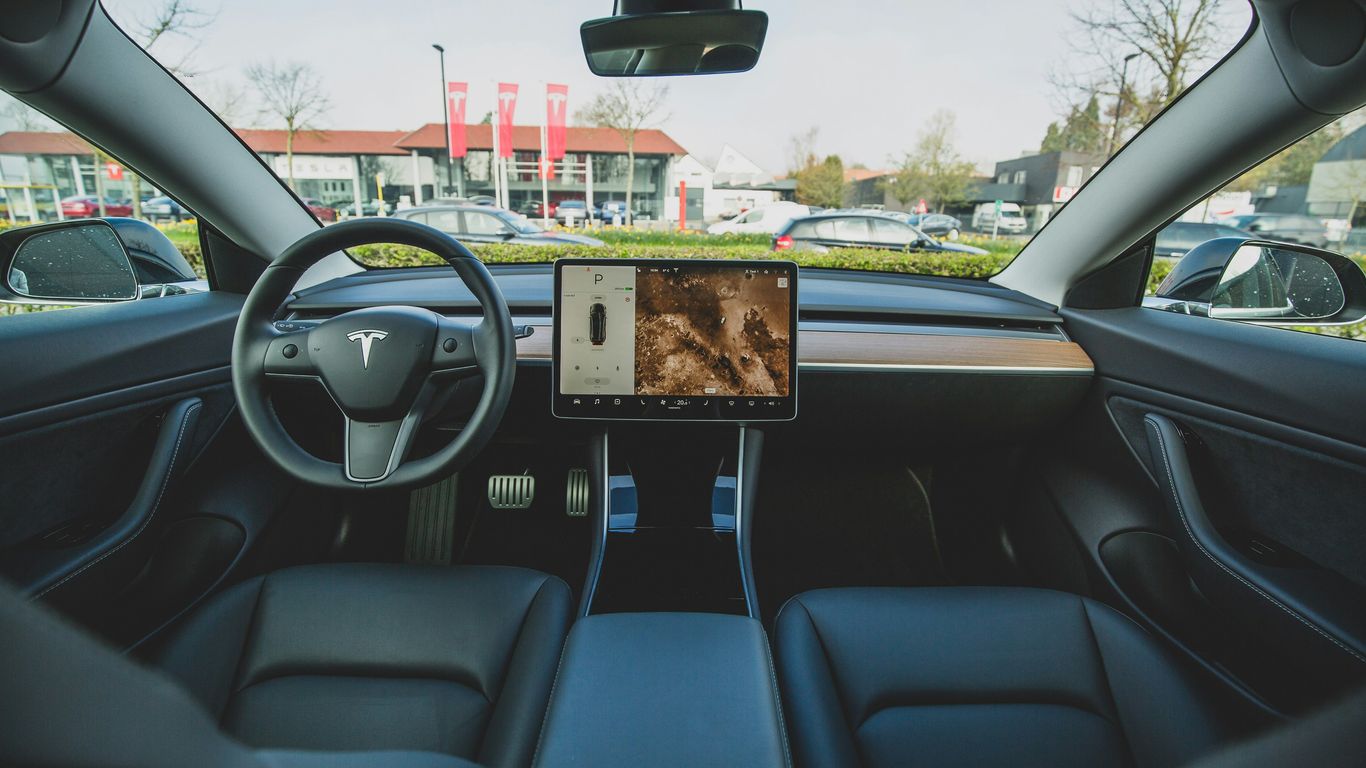
A good display setup shows the information you need without making you hunt for it. Before departure, arrange navigation, media, and vehicle controls so the most common actions are familiar. Use voice controls or the steering-wheel controls where available, and make changes only while parked.
Keep the map view readable at a glance. Too much information can be as unhelpful as too little, particularly when the route includes several turns or charging stops. You can review this 2026 Tesla settings guide for ideas about display, alert, comfort, and driver-profile adjustments, then confirm that each option exists in your own vehicle.
Night driving deserves its own quick check. Reduce glare, use a comfortable screen brightness, and avoid leaving media controls open if they compete with navigation. A passenger can manage entertainment and route details, but the driver should not be reaching across the cabin for routine changes.
9. Set charging limits for road-trip stops and overnight stays
Charging limits should reflect what happens next. During a road-trip leg, you may choose a higher limit when the extra range helps reach the next planned stop, while a normal overnight routine may use a lower everyday limit recommended for your vehicle. Always follow the charging guidance shown for your specific Tesla and battery configuration.
A small table can make the distinction easier to remember:
Situation | Planning approach | What to check |
|---|---|---|
Normal overnight stay | Use your regular daily limit | Next day’s distance and departure time |
Long road-trip leg | Charge enough for the planned route and buffer | Weather, terrain, speed, and traffic |
Fast-charging stop | Leave when the route has enough range | Remaining stops and arrival estimate |
Unexpected detour | Recalculate before committing to the next leg | Charger access and available buffer |
The table is a planning framework, not a fixed prescription. Charging speed can taper as the battery fills, so stopping when the route is comfortable may be more practical than waiting for an arbitrary number. Recheck the limit after the trip so a temporary road-trip setting does not become your everyday habit by accident.
10. Prepare Tesla app, connectivity, and energy-saving settings
Open the mobile app before leaving and confirm that it can communicate with the car. Check that your phone is charged, the vehicle has received recent information, and you know where to find climate, charging, and lock controls. Connectivity can be imperfect in rural areas, so do not make the app your only plan for essential trip decisions.
A short pre-departure sequence helps keep small omissions from becoming roadside problems:
Confirm the route and the next charging stop.
Check tire pressure and inspect the tires visually.
Pack charging cables, adapters, and any required personal items.
Make sure the phone, payment method, and navigation access are ready.
After completing those checks, consider energy-saving options that are actually relevant to the day’s route. Review the Energy screen to see whether speed, climate, hills, or cargo are affecting consumption, and avoid changing several variables at once. That makes it easier to learn what helped and what merely added another setting to remember.
For cabin comfort, organization can matter just as much as software. Accessories for Tesla groups products by model and category, making it easier to compare organizers, screen protectors, floor mats, and travel items while checking fit for your specific vehicle and year. If you want to shop travel accessories, verify compatibility before purchasing; product availability, shipping, returns, and customer service are handled by Amazon.
Plan the drive around the settings
The strongest road-trip setup is not a dramatic collection of changes. It is a calm routine: plan the route, understand the range estimate, prepare for charging, keep alerts useful, and leave yourself enough margin to adapt. Test unfamiliar options close to home first, then use the configuration that feels predictable when the miles begin to accumulate.
Frequently Asked Questions
Should I display battery percentage or miles?
Miles can make the remaining range easier to compare with the distance to a destination, while percentage gives a direct view of battery state. Choose the view you interpret most reliably, and use navigation estimates as an additional planning reference.
How early should I plan a charging stop?
Enter the charging stop into the vehicle’s navigation before you get close to it. This gives the route time to account for the stop and, where supported, gives the vehicle time to prepare the battery.
Is a higher charging limit always better for a road trip?
Not necessarily. Use enough charge for the planned leg and a sensible buffer, while keeping regular charging aligned with the guidance for your vehicle and battery configuration.
Does climate control significantly affect road-trip range?
Climate use can affect energy consumption, especially in very hot or cold conditions. Speed, wind, elevation, tire pressure, traffic, and vehicle load also matter, so consider the whole trip rather than blaming one setting.
Should I change regenerative braking before a long drive?
Test any adjustment on familiar roads first. The most suitable setting depends on your driving style and conditions, and smooth control is more valuable than choosing a setting you cannot comfortably manage.
Can driver-assistance features replace active driving attention?
No. Driver-assistance features require continuous supervision, and the driver must remain ready to steer, brake, or take over whenever conditions change or the system requests it.
What should I check in the app before leaving?
Confirm that the app connects to the vehicle and that you can find charging, climate, and lock controls. Also prepare a backup plan for weak cellular coverage, including the route, charging information, and a charged phone.


Comments